

What can you do with HeriBase?
HeriBase helps you identify coins and banknotes from photos, review reference values and organize saved items into a collection. This guide shows how to capture both sides, correct a record, explore a coin’s 3D model, manage sets and export collection records.
Start on Home to identify an item, use Collection for saved records and value summaries, or open Market to browse and sell. The person icon leads to your account, identification history, preferences and support.
You can start without a subscription. The first three scans each day are free, and you can watch ads for additional scans without subscribing. A subscription includes unlimited identification. Premium benefits and human expert appraisal are separate services, with expert fees shown for the selected service. Identification results and reference values support research; they do not establish authenticity or guarantee a sale price.
| Your goal | Where to start | What you will use |
|---|---|---|
| Identify coins and banknotes | Home → Identify for Free | Photos and an identification result |
| Keep a collection | Collection | Sets, coin records and a value overview |
| Browse or offer a coin | Market | Search, listings and + Sell |
| Ask a specialist | Expert / Expert Appraisal Service | A specific question and detail photos |
| Manage your account | Person icon | Profile, history, language and support |
| Understand paid access | Subscriptions and fees | Premium benefits, offers, restoration and cancellation |
About this guide: written by the HeriBase Team, the team behind HeriBase, using iPhone screenshots. Labels and available features may vary by app version. Prices are screenshot examples in USD; check your current offer before paying. Tap any screenshot to enlarge it.
Download, sign in and manage your account
Download the app → register or sign in → check and edit your profile → sign out or request deletion.
Download and access your account
Visit our download page, follow the store link for your device, then install and open HeriBase.
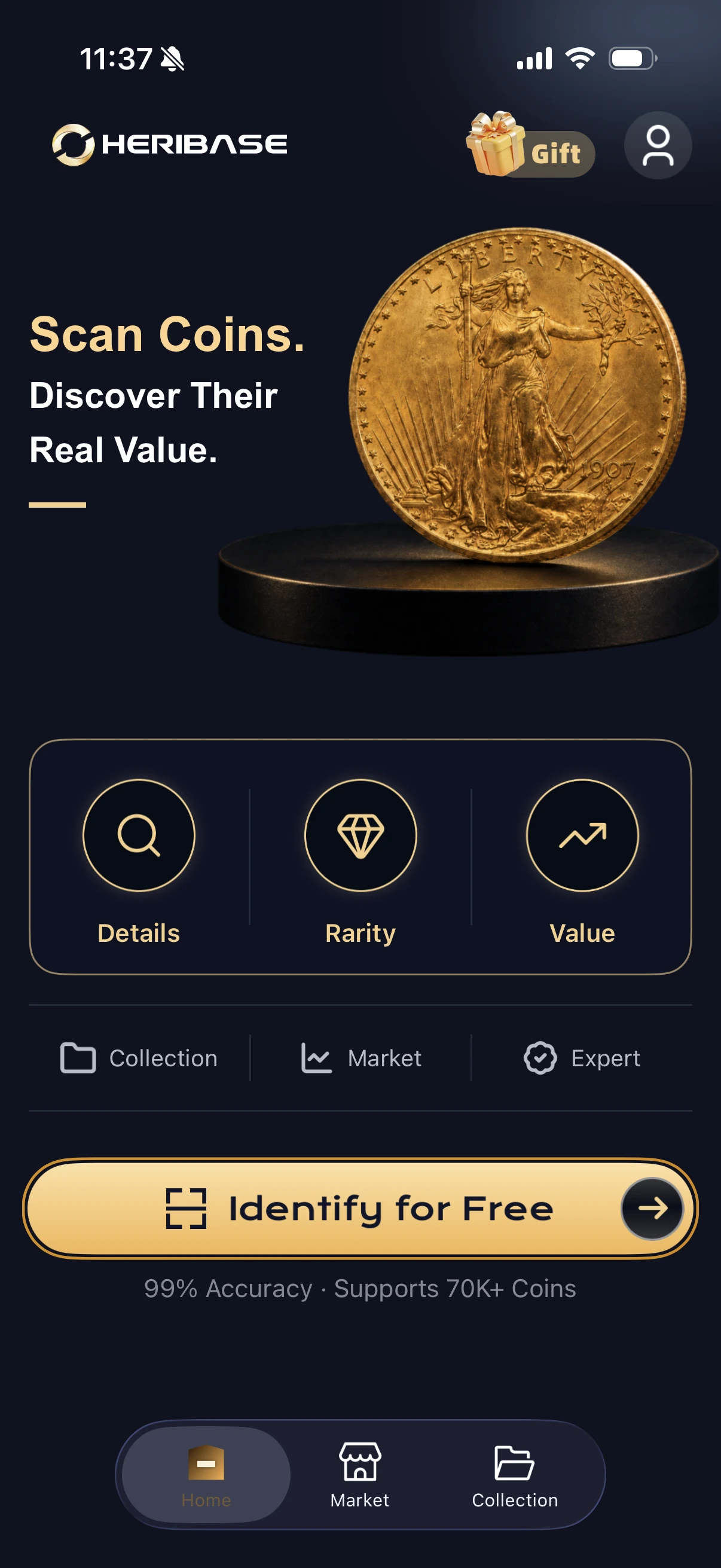
Open the account entry
On Home, tap the person icon at the top right, then choose Log in on your profile.
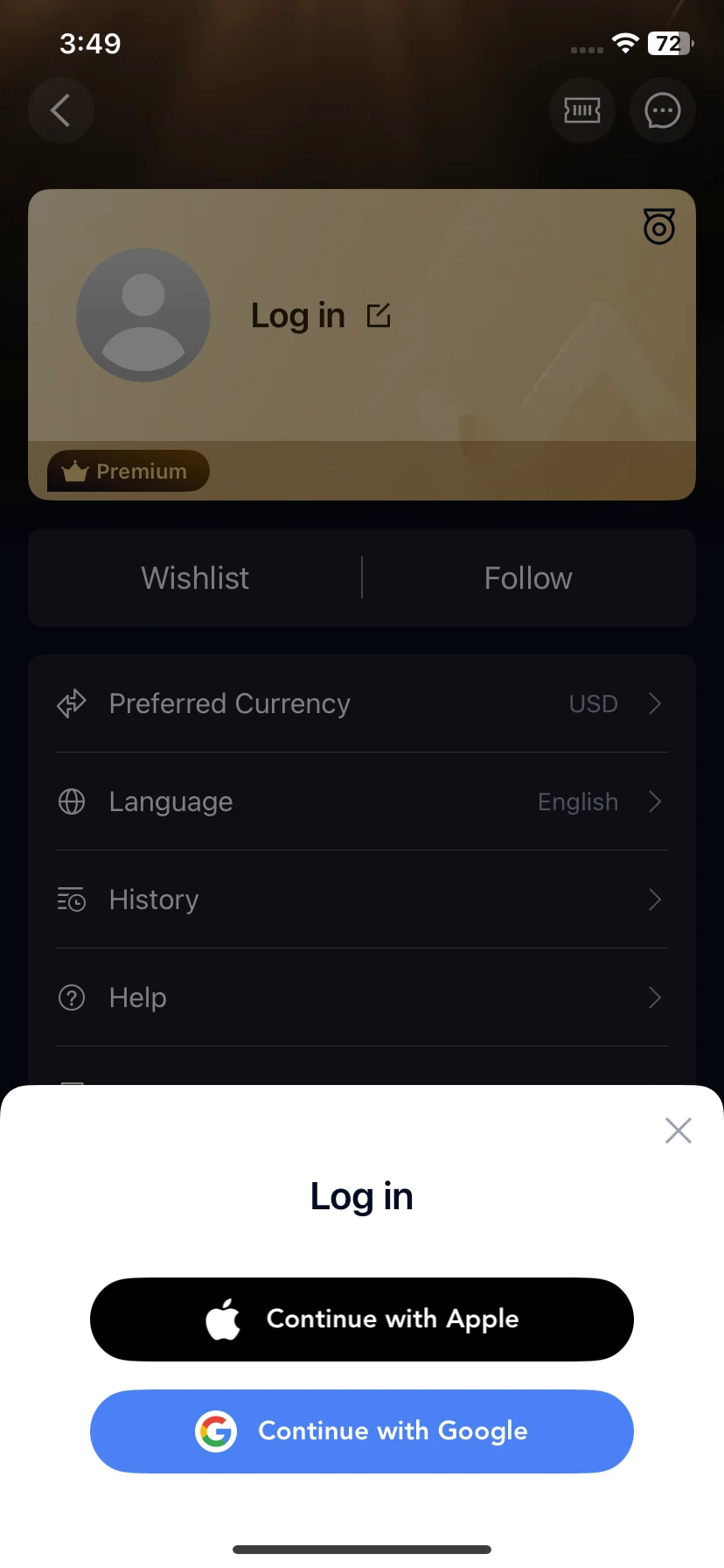
Register or sign in
Choose Continue with Apple or Continue with Google and follow the provider’s prompts. For later visits, use the same provider and account.
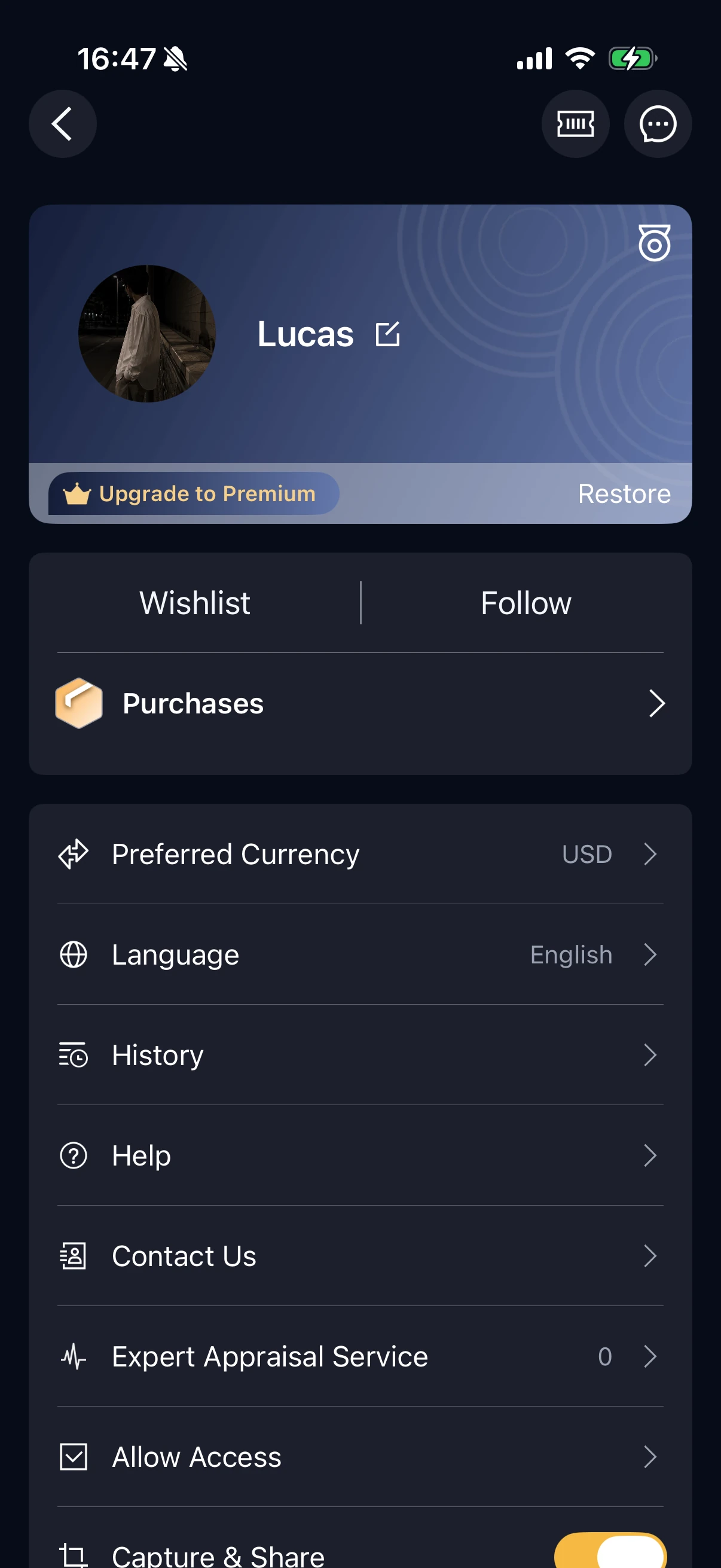
Check the signed-in profile
Confirm that your avatar and name appear in place of Log in.
Edit your profile, sign out or delete your account
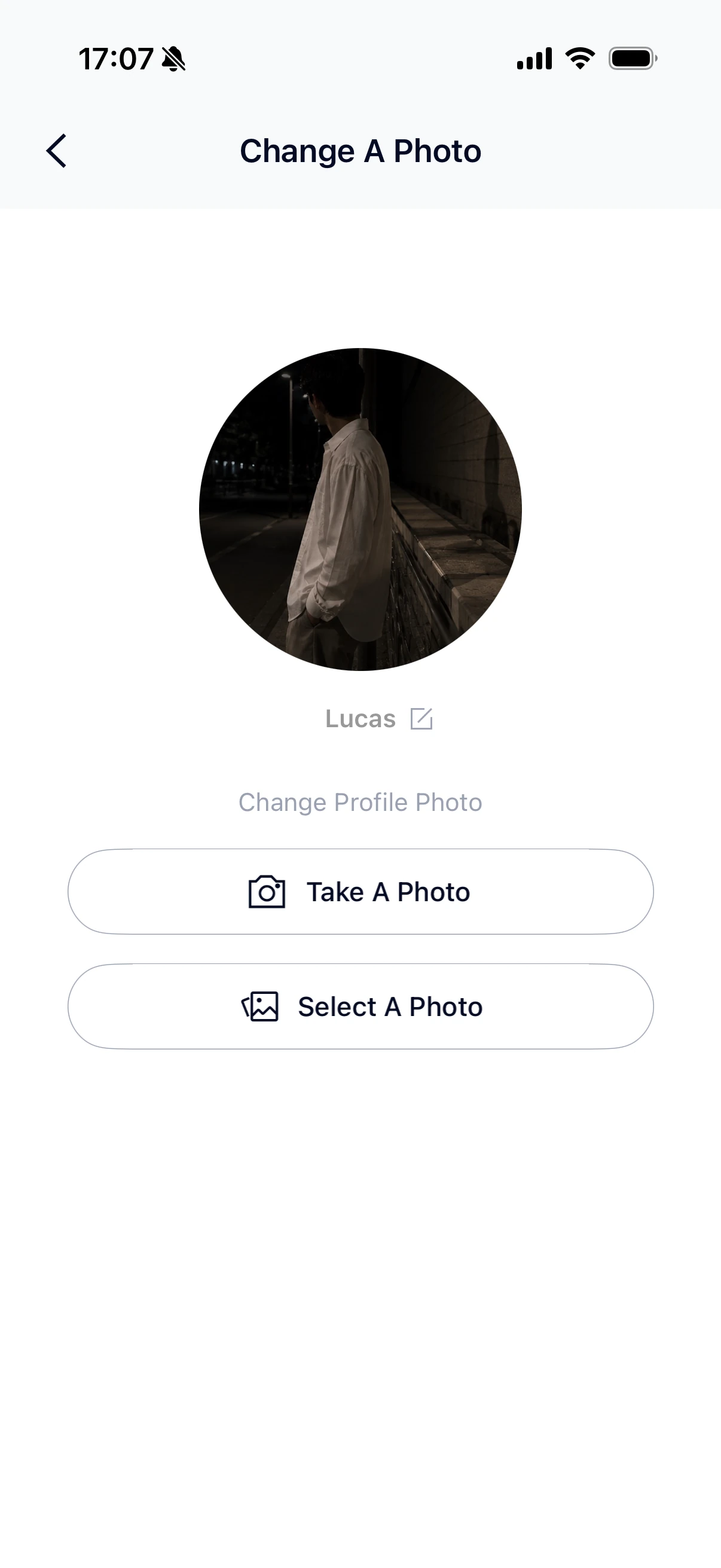
Edit your profile
Open the edit icon beside your name on the profile page. Tap the icon beside your nickname to change it. For your avatar, choose Take A Photo or Select A Photo and follow the prompts, then return to your profile to check the update.
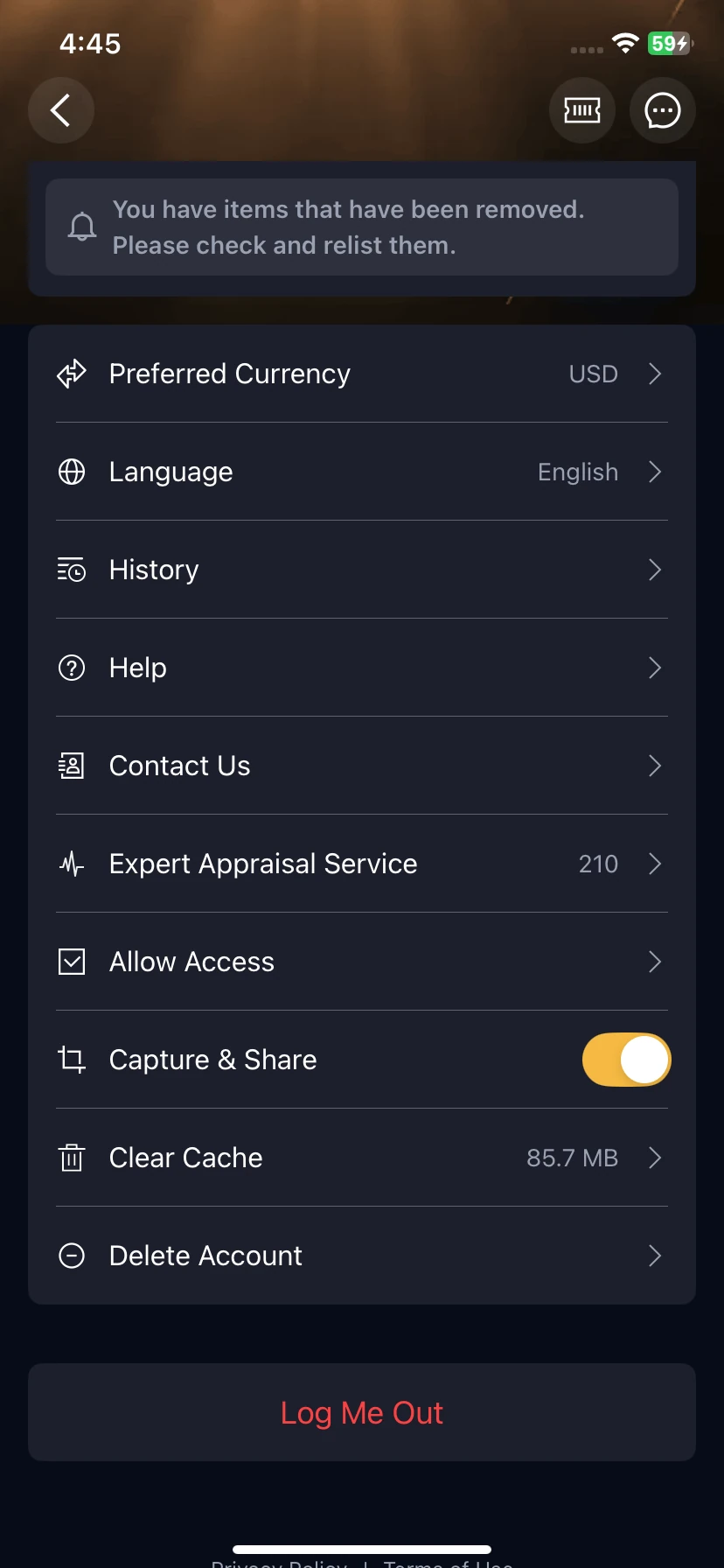
Sign out
Scroll to the bottom of your profile and tap Log Me Out. Follow any confirmation and check that the profile returns to its signed-out state. Use the same provider when you sign in again.
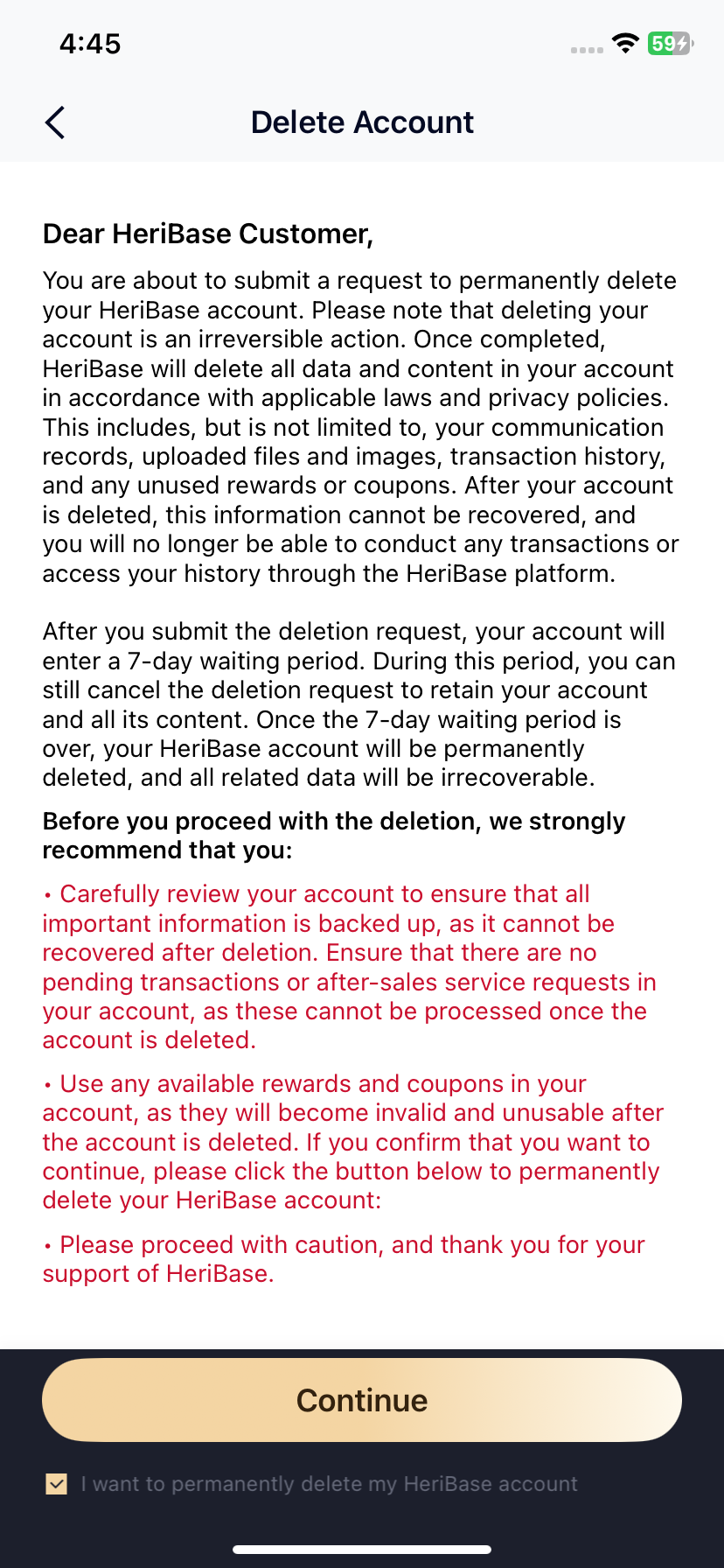
Request account deletion
Tap Delete Account in profile settings. Read the notice, back up important information and resolve pending transactions or after-sales requests. To proceed, select the acknowledgment, tap Continue and follow the remaining prompts.
Deletion waiting period: the supplied notice states that you have seven days after submitting a request to cancel it. After that period, deletion is permanent and account content cannot be recovered.
From your first scan to finding a past result
Home → Identify → Coin or Banknote → Result → Save or leave → History.
1. Open the camera and choose your item type
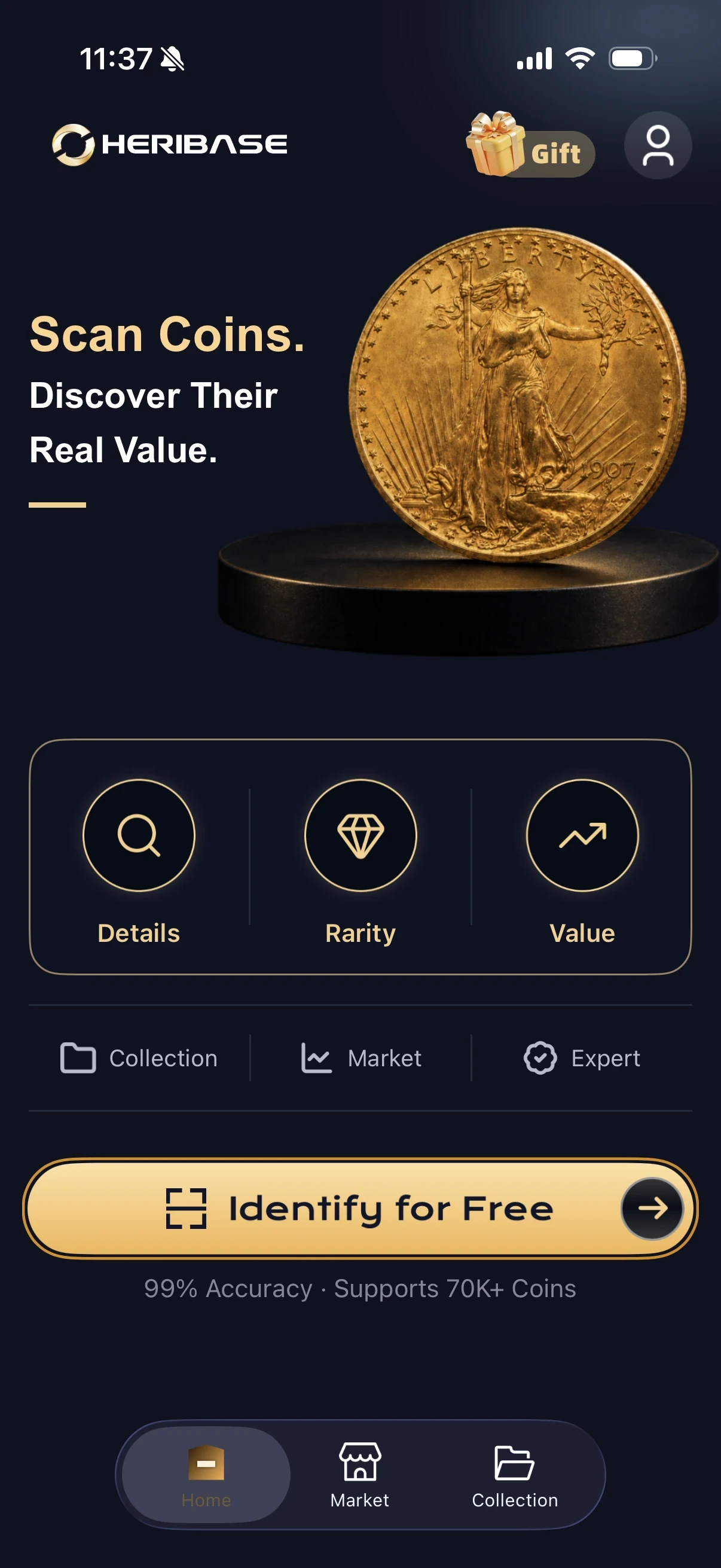
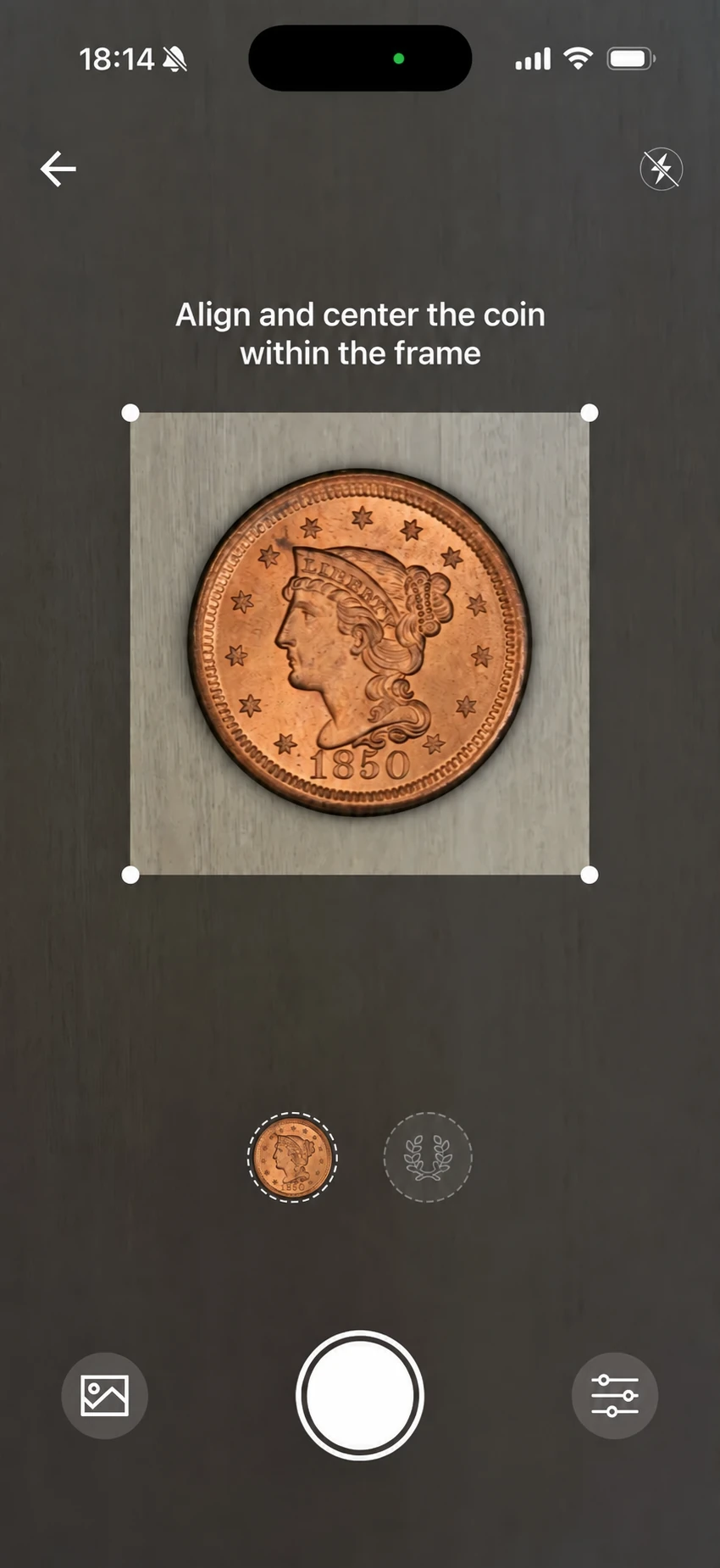
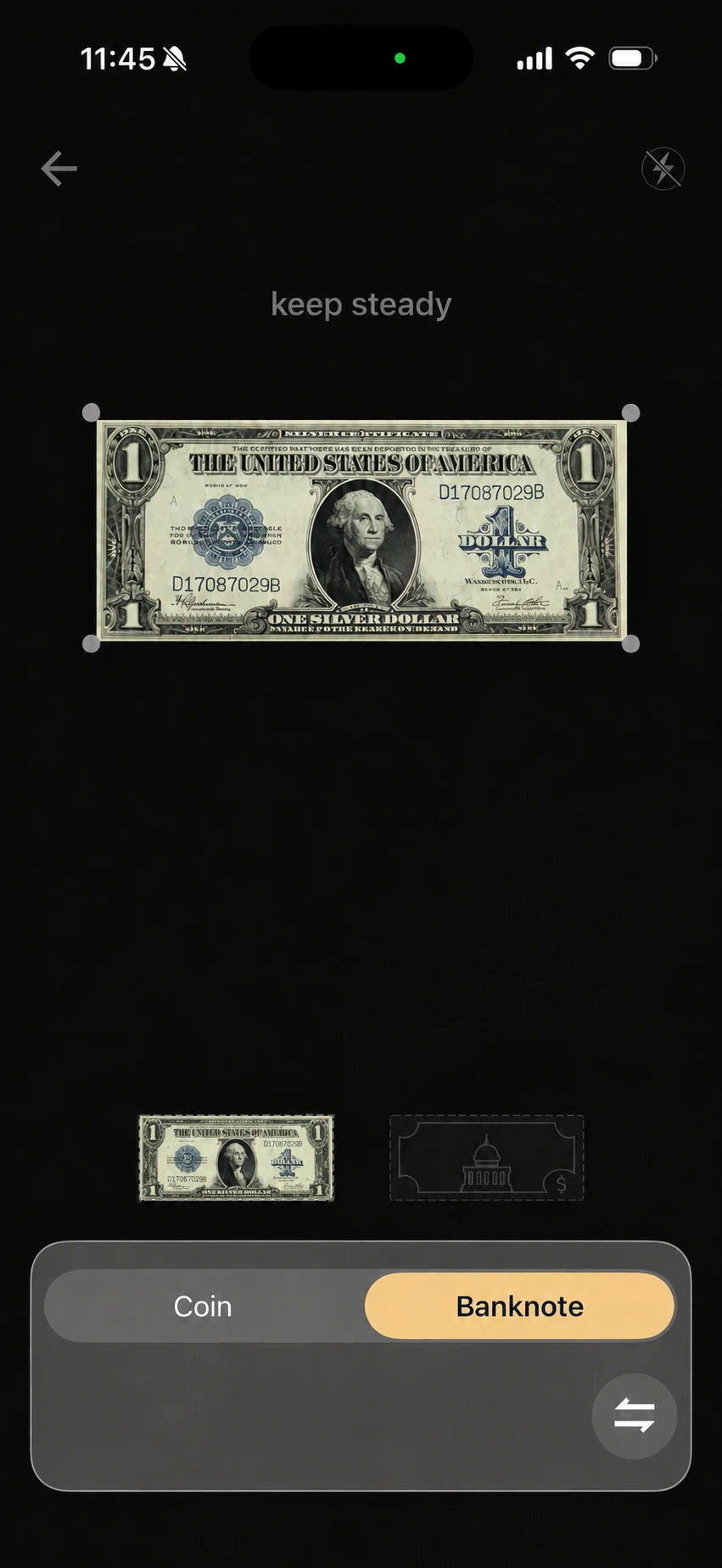
- Open the camera. On Home, tap Identify for Free (or Identify, depending on your account).
- Choose Coin or Banknote. Use the settings control at the bottom right to open the item-type options and switch to the matching mode.
- Frame the whole item. Center a coin in the square guide with its full rim visible; fit a banknote within the rectangular guide with all four edges visible. Keep the camera steady and avoid cutting off the design.
- Capture both sides. Use the central shutter button to photograph the front (obverse), then turn the item over and photograph the back (reverse), following the two side indicators above the shutter.
- Use existing photos. Tap the gallery icon at the bottom left to choose an image from your photo library. Follow the prompts to supply the corresponding front and back images.
- Adjust the lighting. The lightning icon at the top right controls the flash. Use even light and avoid glare that hides lettering or fine details.
- Review the result. Complete the photo prompts, then check the proposed identification against your item.
2. Review the result for your item type
Review the identity, reference value and available details for your item. Catalog dimensions describe the identified type, not measurements of your physical coin or banknote.
Coin identification
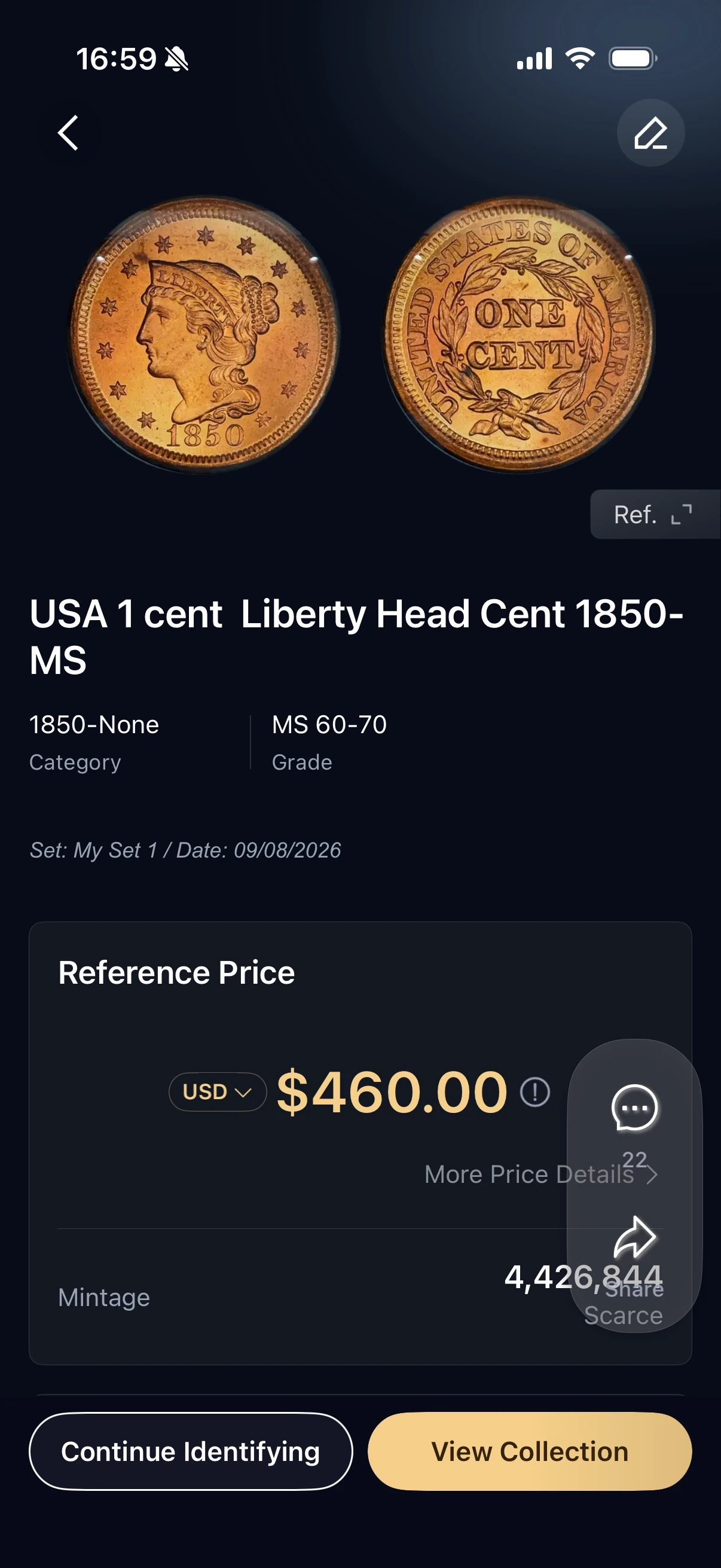
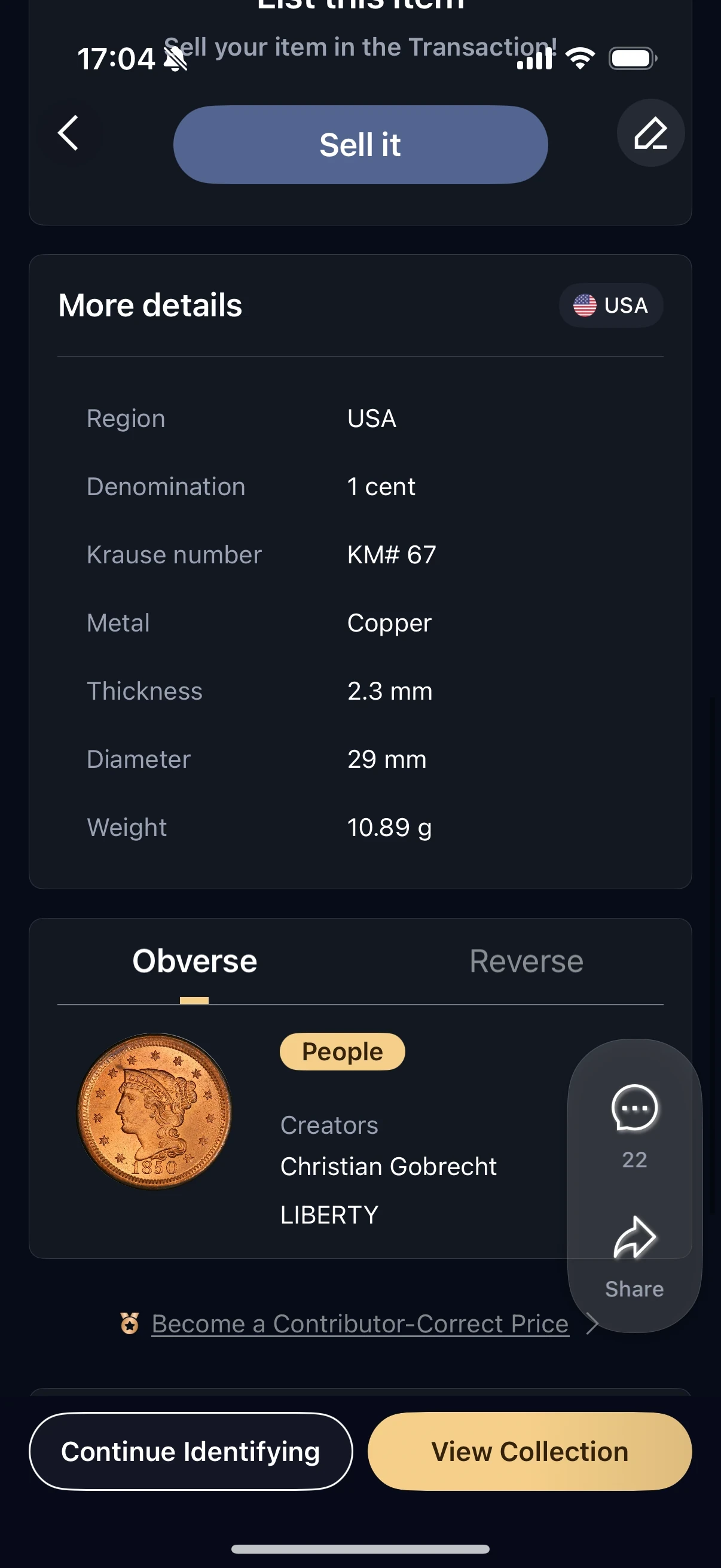
Information you may find
- Name, country or region, denomination and year
- Mint or mint mark and catalog reference
- Suggested condition and reference value
- Mintage and material or composition
- Standard weight, diameter and thickness
- Obverse and reverse designs, inscriptions and designer information
Banknote identification
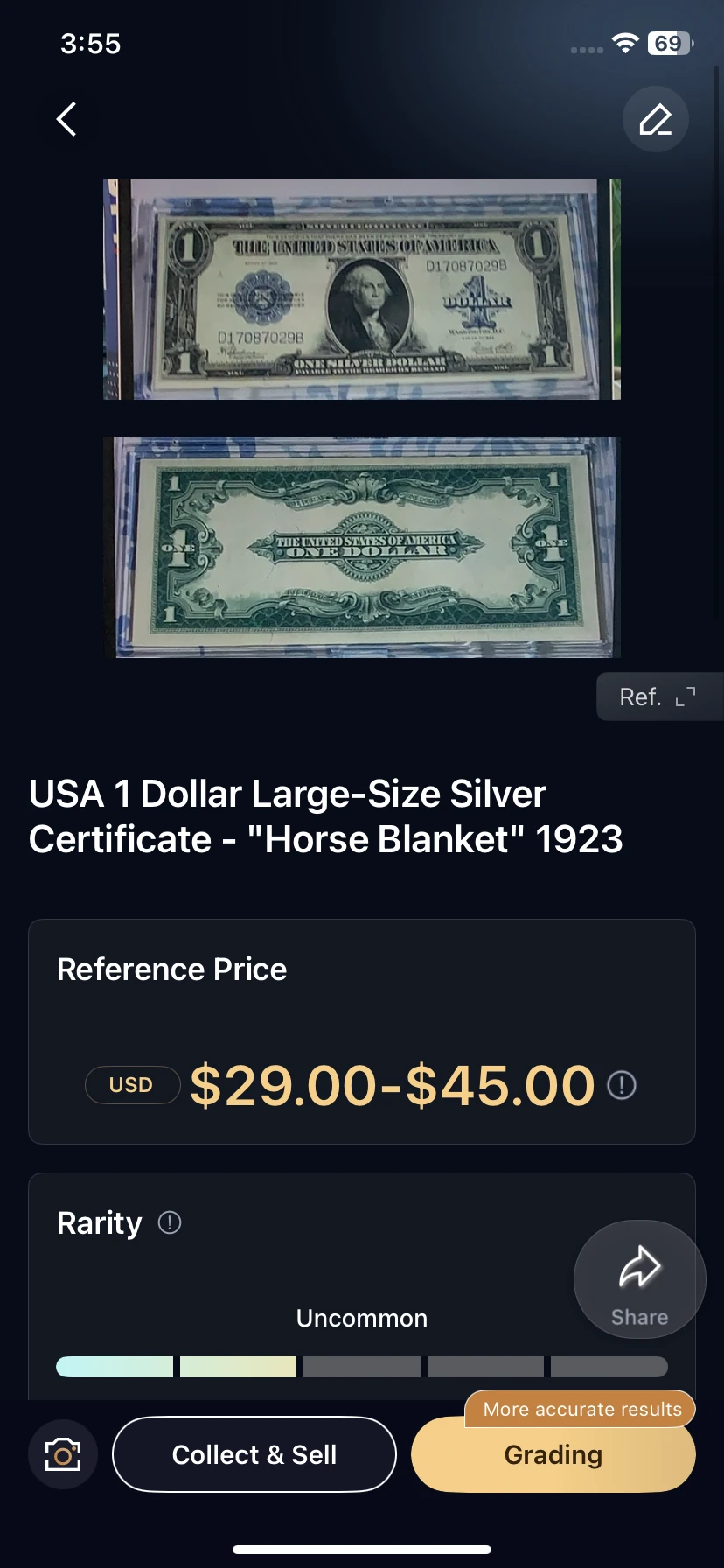
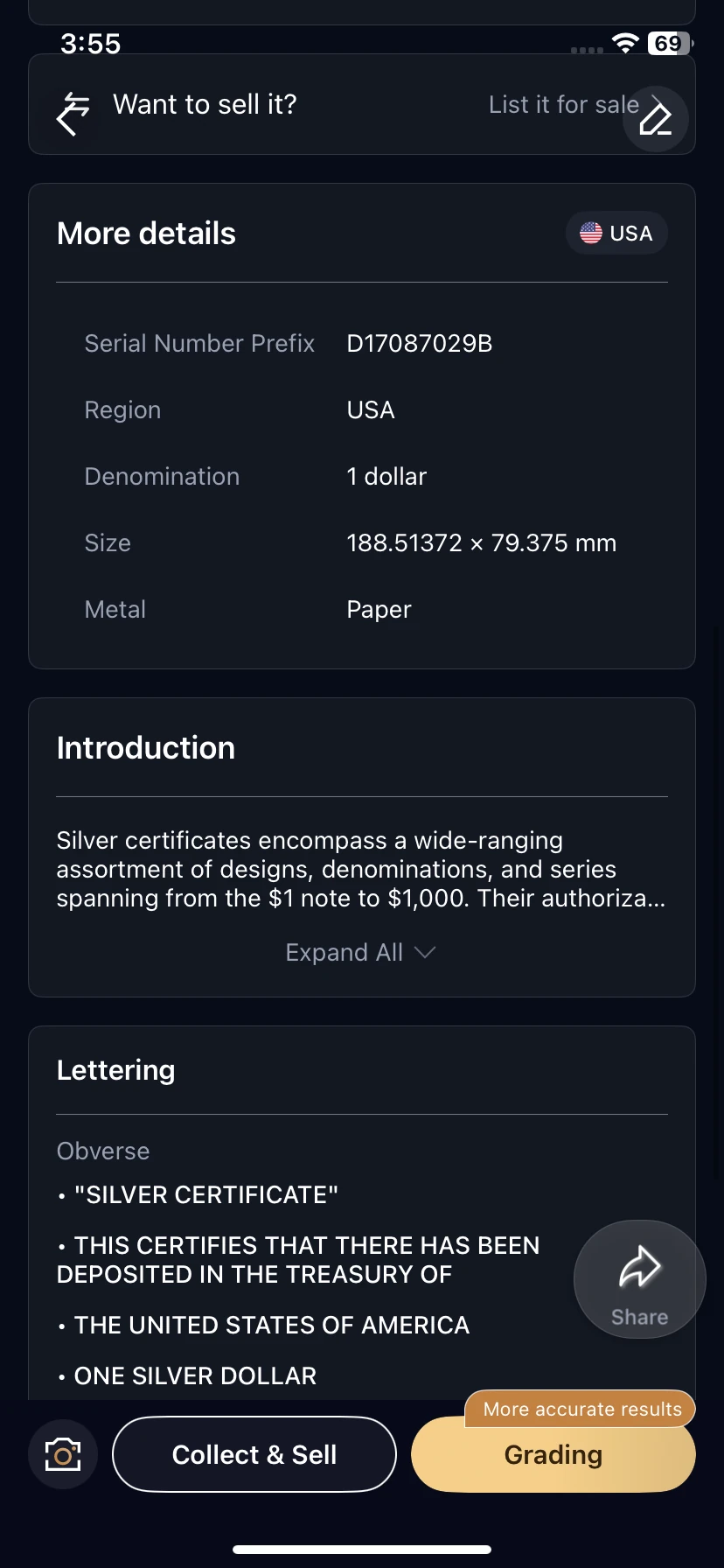
Information you may find
- Name, country or region, denomination and year or series
- Serial-number information
- Reference value range and rarity label
- Dimensions and material
- Background introduction
- Front and back designs and printed lettering
3. Correct an identification in your record
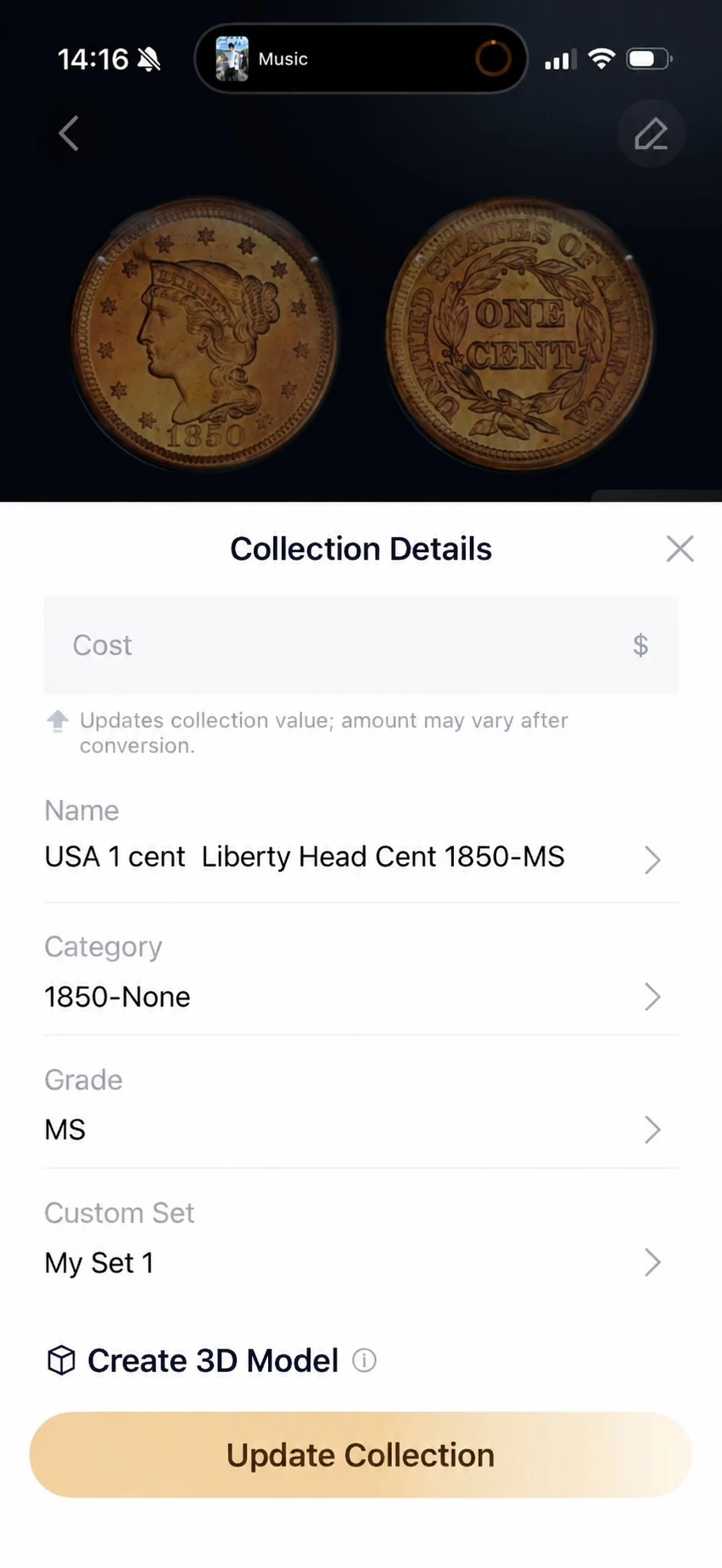
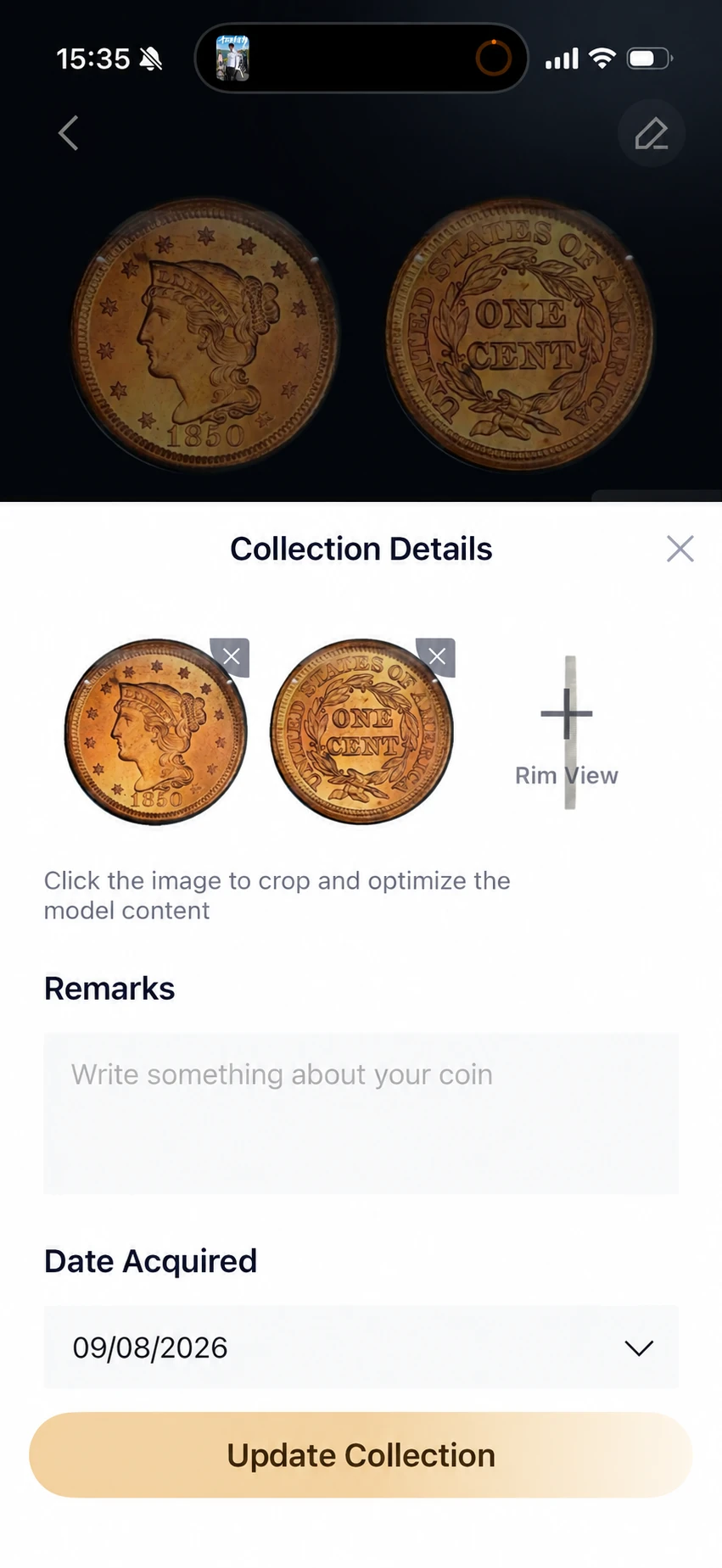
Review and edit the coin details
To correct an identification or update a saved coin, open the coin’s detail page and tap the Edit button in the top-right corner.
- Review Name, Category (including the year or variety where available) and Grade, then select the appropriate information.
- Enter your purchase Cost and choose a Custom Set if needed.
- Review the front and back photos, add a Rim View, and record Remarks or Date Acquired. The editor also offers photo cropping.
- Tap Update Collection to save the changes.
Need help with a correction? Send feedback or email contactus@heritcoin.com.
4. Create and explore a 3D coin model
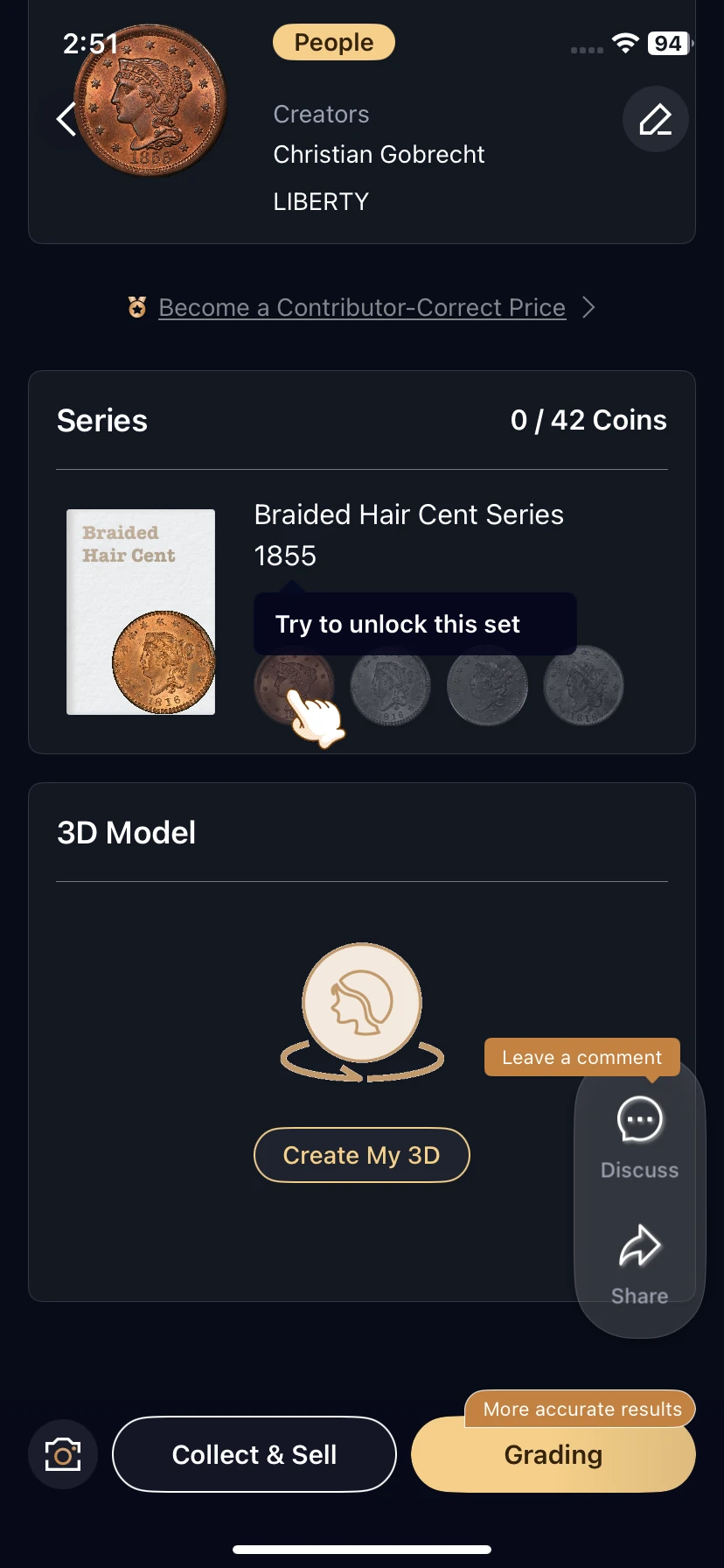
Create 3D Model is shown in the collection editor. On the coin detail page, look for Create My 3D and follow the prompts to generate and load the model. In the app, explore the portrait, edge and reverse; use Reset in the viewer to return to its starting view.
Choose View Collection to return to your records or Continue Identifying to scan another item.
The video is a recorded demonstration. A digital model is a viewing aid, not proof of authenticity or grade.
5. Choose whether to add it to your collection
To save a new result, use Collect & Sell and choose the collection option. If the item is already saved, use View Collection. See collection tools for organizing and exporting records.
If you only want to identify the item, leave the result using the back control without choosing the collection option. Identification history and your saved collection serve different purposes.
6. Find a previously identified item
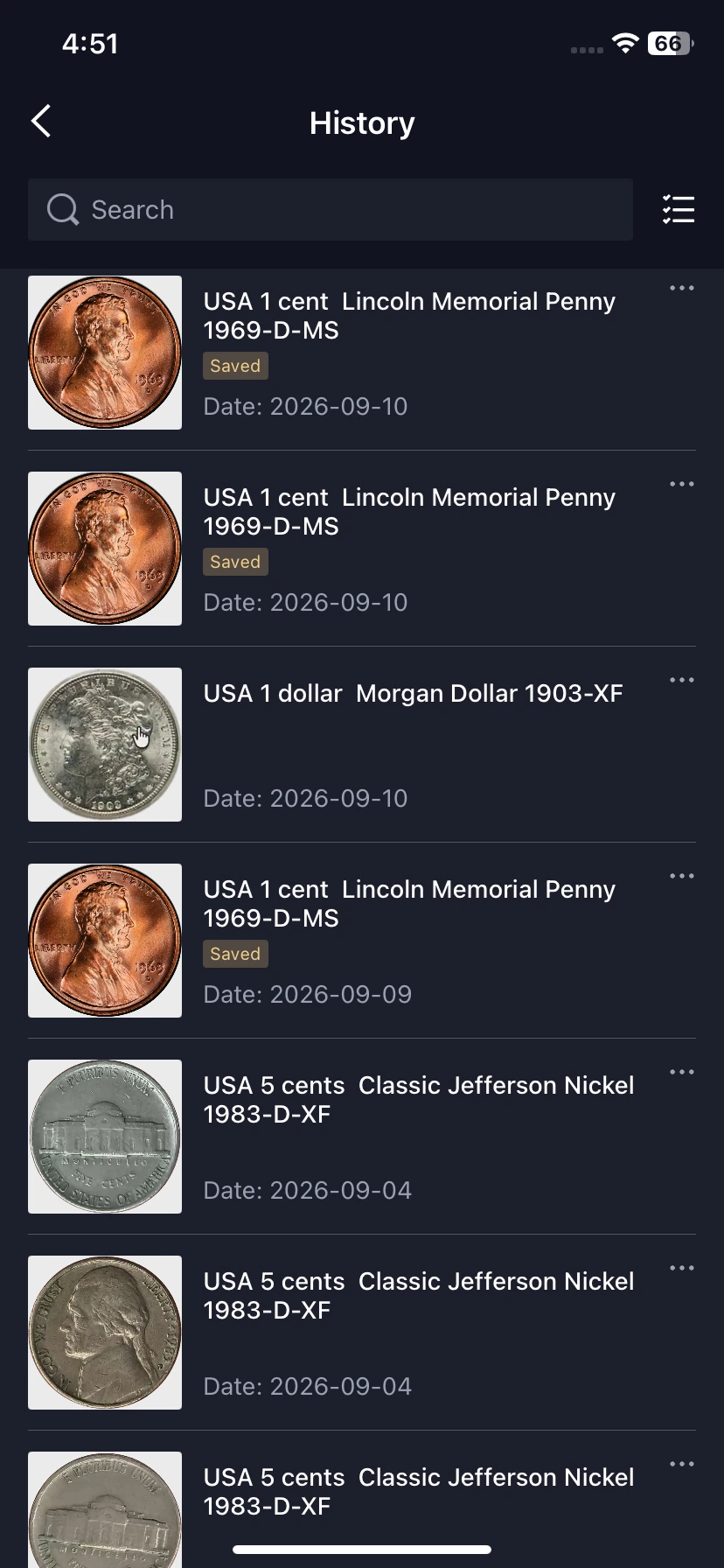
Home → person icon → Profile and settings → History
- On Home, tap the person icon in the top-right corner to open your profile and settings page. Then select History on that page.
- Search for a previous identification or browse the list. Each entry shows an item image, its identification name and a date.
- Tap a record to revisit its result. Use the selection control or a row’s three-dot menu to see the available record actions.
Some records display a Saved label. To browse items you have added to your collection, use the bottom Collection tab. Record availability and retention depend on your account and plan; see Subscriptions and fees.
If the identification seems inaccurate
Send clear item photos, the identification result and a short description of the error to contactus@heritcoin.com.
You can also apply for expert appraisal to have a specialist review your item.
Add, organize, review and export your collection
Start by saving an identification or importing existing records. Then use Collection to browse your items, review value information and export a copy by email.
1. Choose how to add items
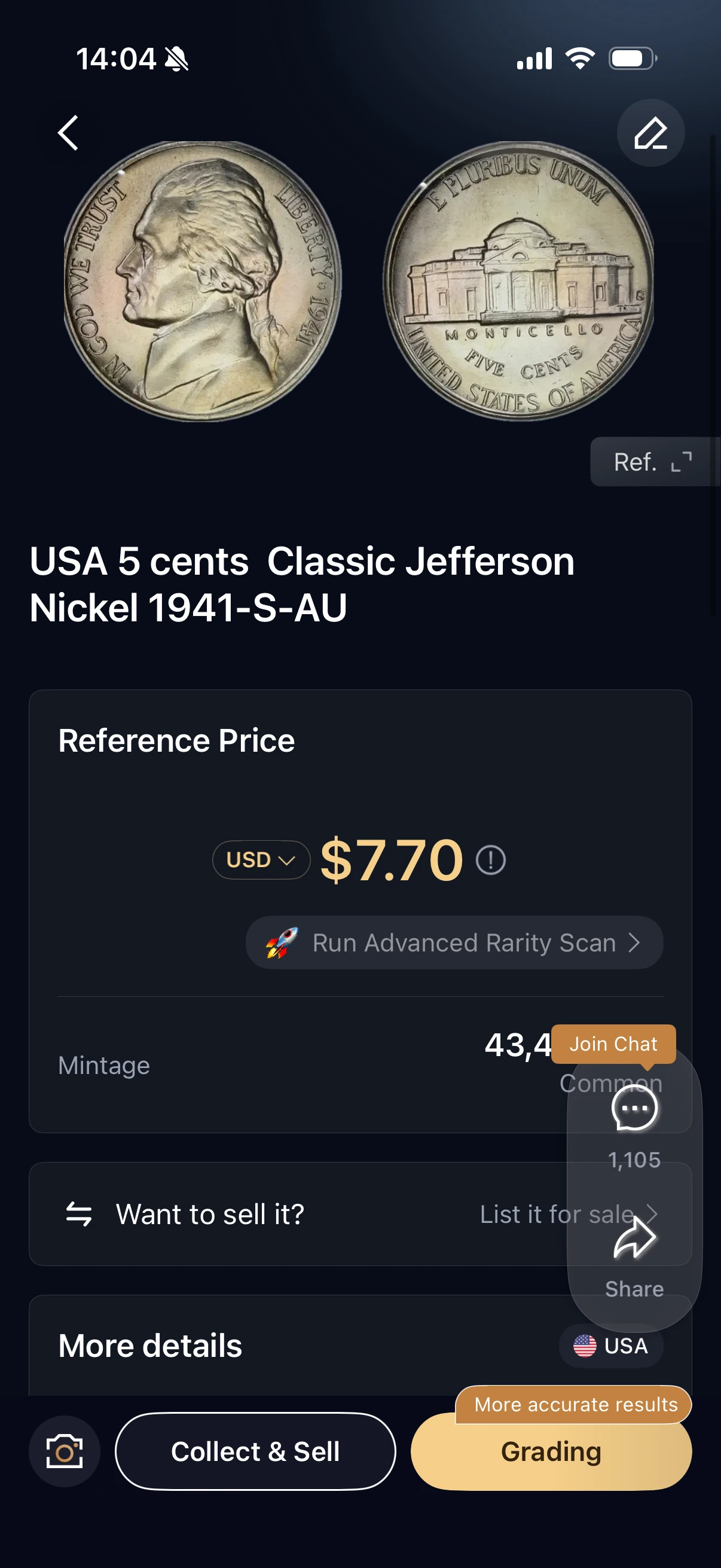
After identifying an item
Tap Collect & Sell on the result page, then choose the collection option to save your item.
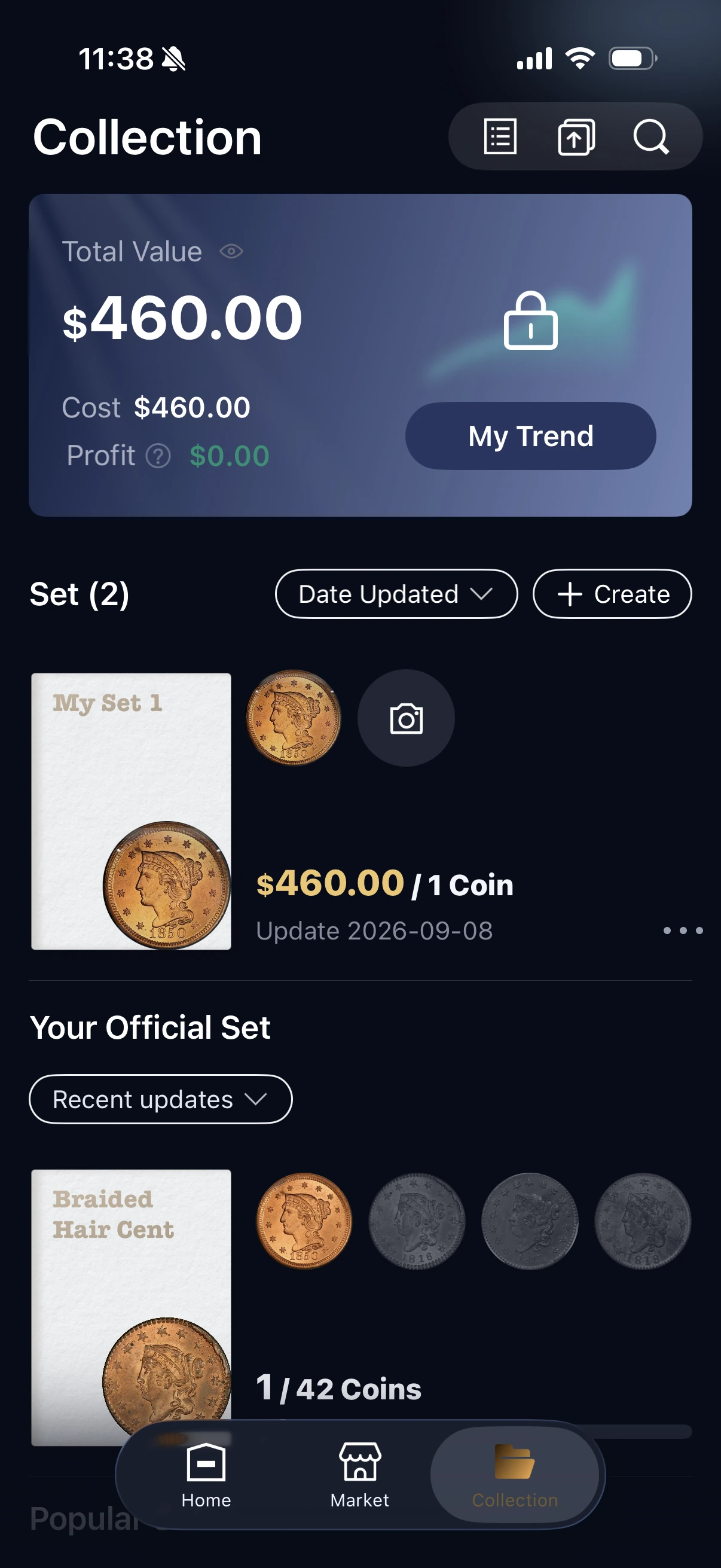
From the Collection tab
Open Collection in the bottom navigation. Use + Create to start a set, or the camera shortcut to add another item.
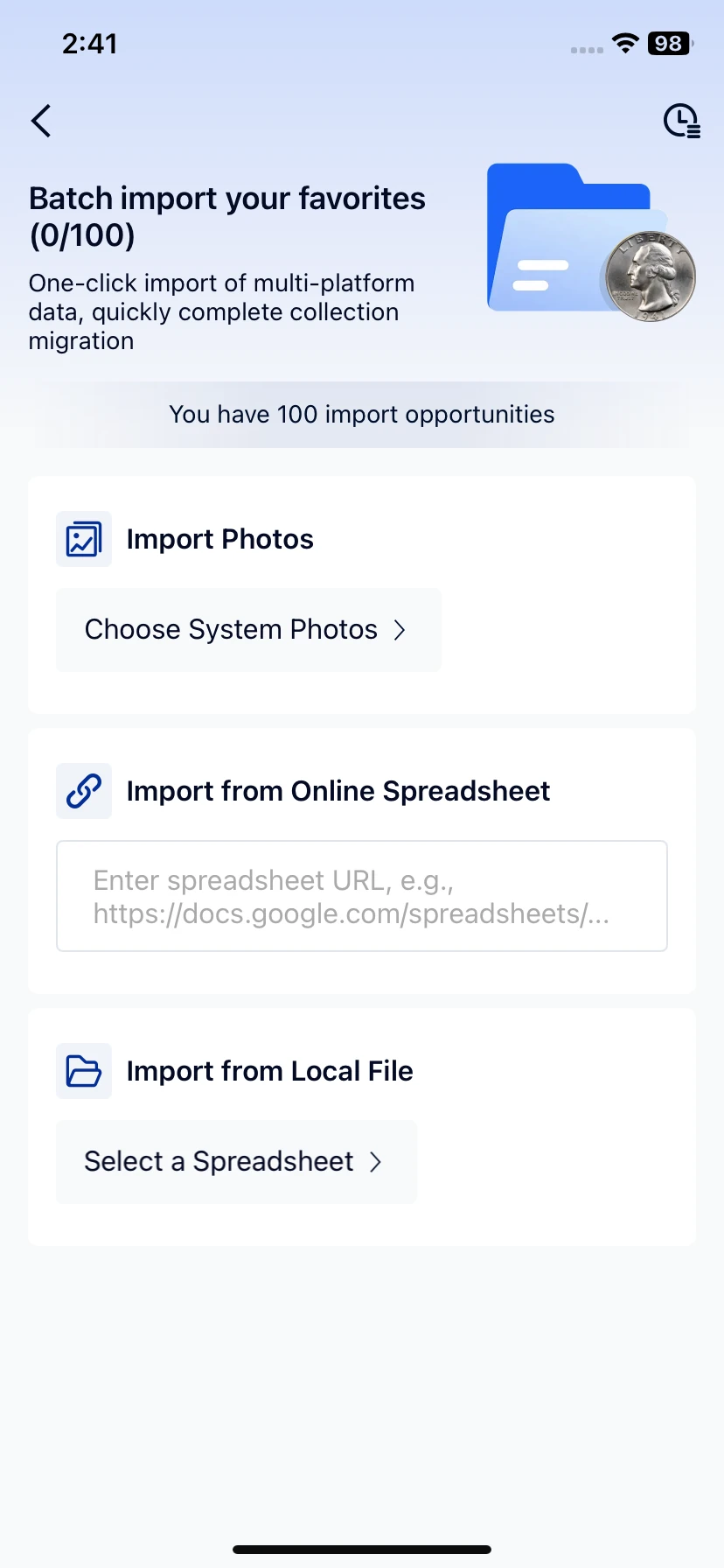
Batch import: choose your source
In Collection, look for the import icon near the top-right search control. The illustrated Batch import your favorites screen offers three routes:
- Choose System Photos: select existing item photos.
- Import from Online Spreadsheet: enter your spreadsheet URL in the field shown.
- Select a Spreadsheet: choose a local file from your device.
This is an overview of the import options. The supplied screen does not show supported file formats, required columns or the completion steps. Before preparing a spreadsheet, ask support for the current import format or template. After importing, return to Collection and check that the expected records, photos and details are present.
2. Browse and organize your collection
Create and manage your own sets
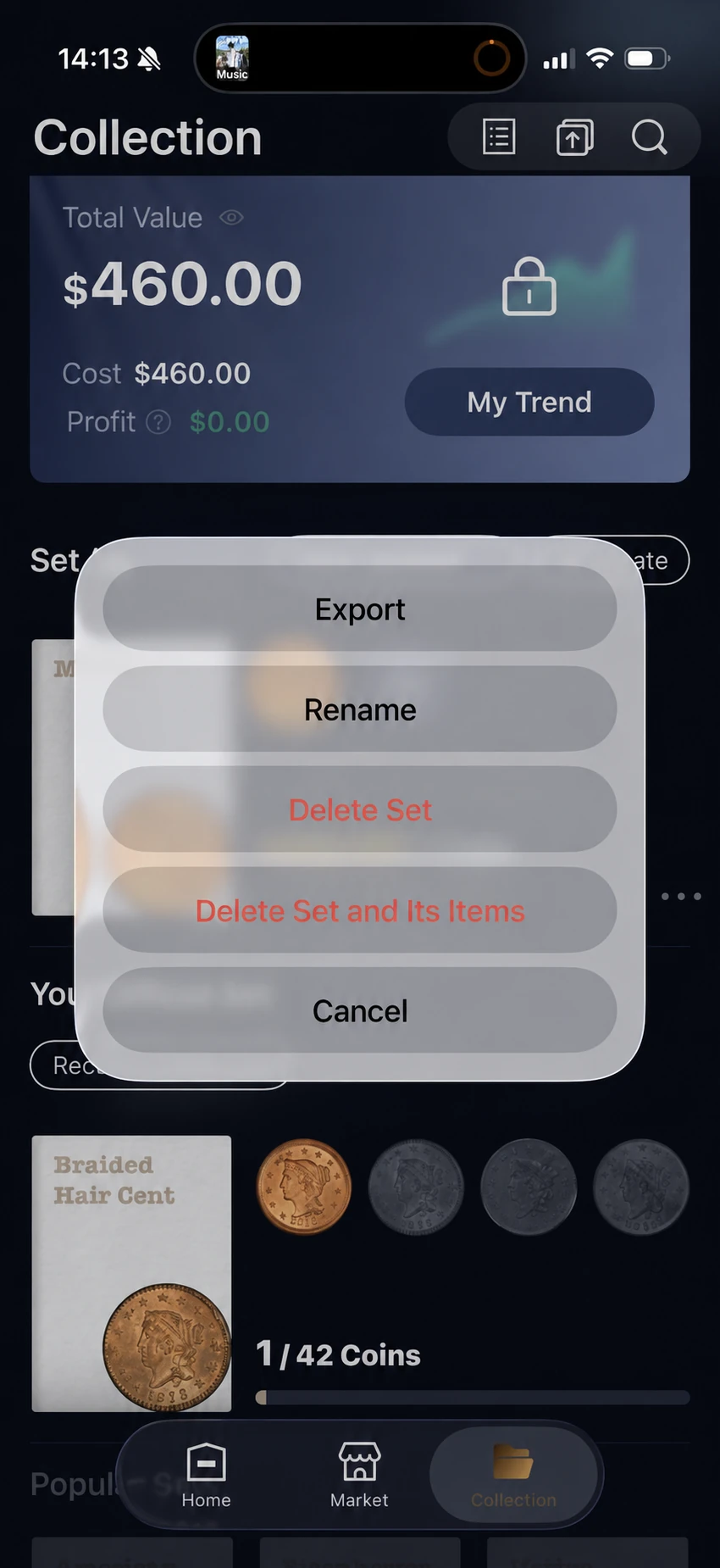
- Create a coin collection folder. Open Collection and tap + Create beside Set. Follow the prompts to name and create your personal set.
- Add coins. Open a coin’s editor, choose the folder under Custom Set and tap Update Collection. The collection overview shows the set’s cover, coin count, value and update date.
- Choose a cover. Open the set, then a saved coin’s three-dot menu and choose Set as Cover. This control is shown in the individual-coin menu below.
- Change the folder name. After creating a set, open its three-dot menu on the collection overview and choose Rename.
- Delete the folder only. Choose Delete Set to remove the folder while keeping its coins.
- Delete the folder and its coins. Choose Delete Set and Its Items to remove both. Check the selected option and any confirmation before proceeding; use Cancel to leave the menu.
Manage individual coins and find saved records
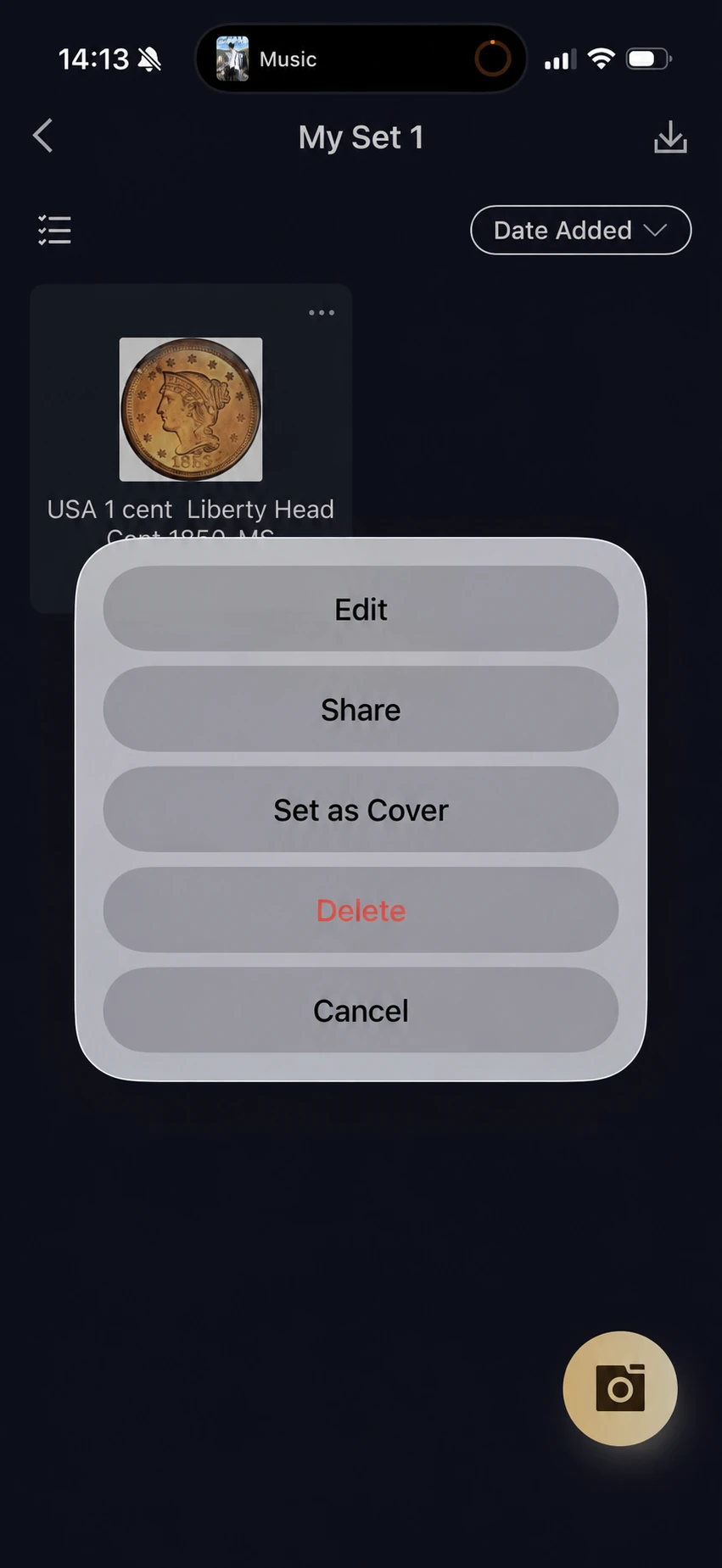
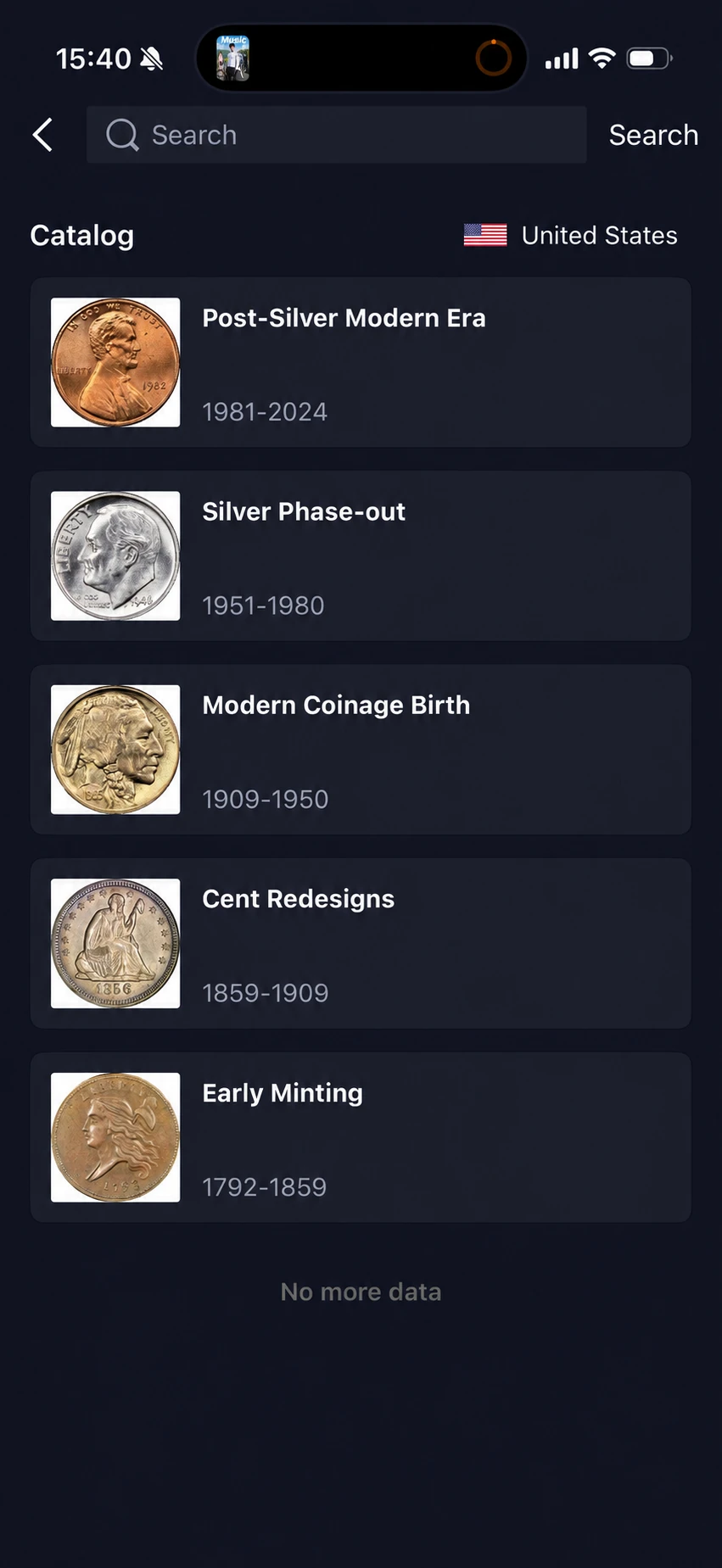
Open a set in Collection, then tap a coin card’s three-dot menu to manage that saved record.
- Edit: open Collection Details to update the coin’s identity, grade, cost, photos, notes or assigned set, then save your changes.
- Share: open the available sharing options for the selected coin.
- Set as Cover: use this coin’s image as the collection folder’s cover.
- Delete: remove the selected saved coin. Check any confirmation before proceeding. Choose Cancel to close the menu without selecting an action.
Use Date Added to choose the list order, the selection icon at the top left to select records, and the camera button at the bottom right to photograph or upload another coin.
For search, enter a keyword in the search field and tap Search. The right-hand example shows a Catalog view for United States coins, with groups and date ranges you can open to explore. These catalog groups are distinct from the saved coin cards in your set.
3. Review collection values
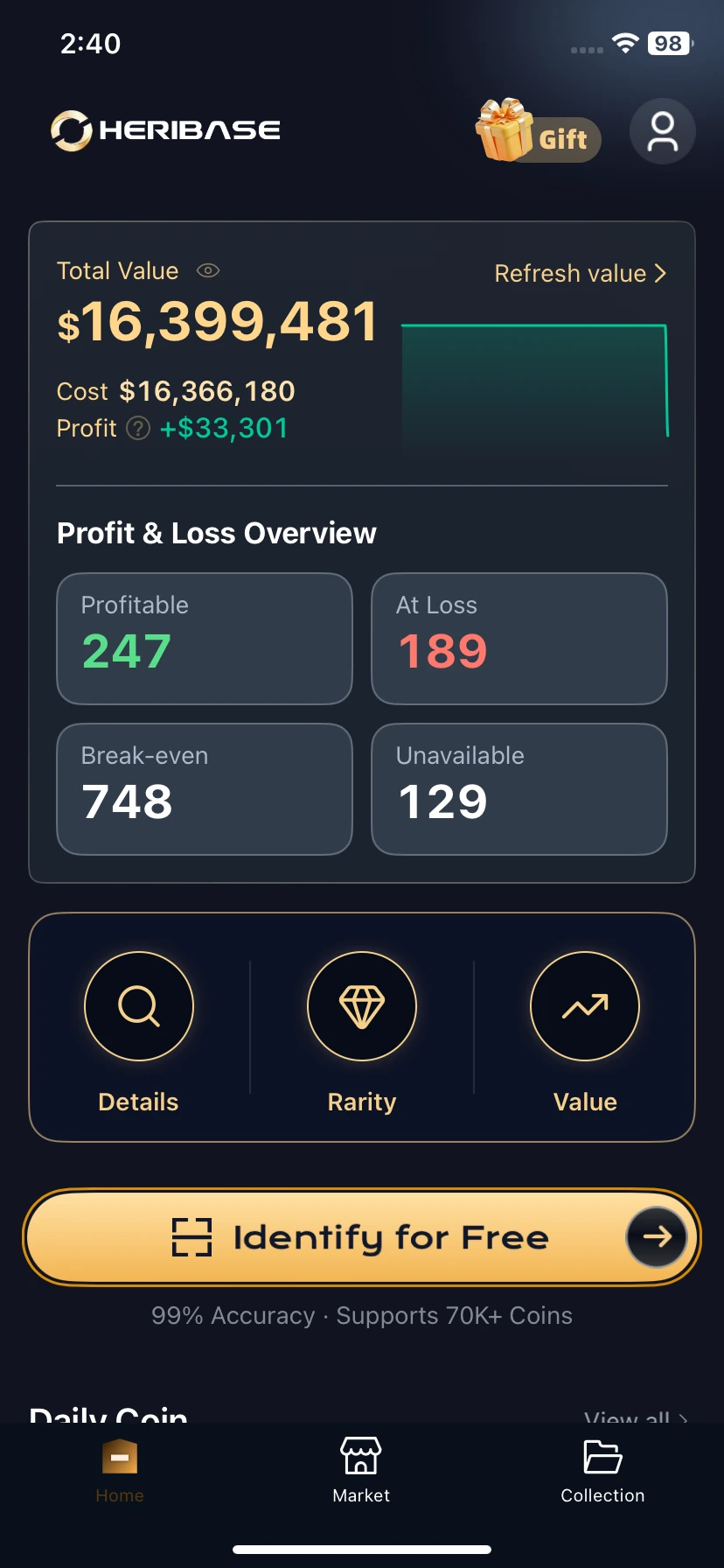
See the overall picture
The overview brings together Total Value, Cost and Profit, with categories for profitable, loss-making, break-even and unavailable records. Look for Refresh value to review available value updates; use My Trend in Collection to explore trends.
Use these figures to track collection records. They are not realized sales proceeds or guaranteed returns.
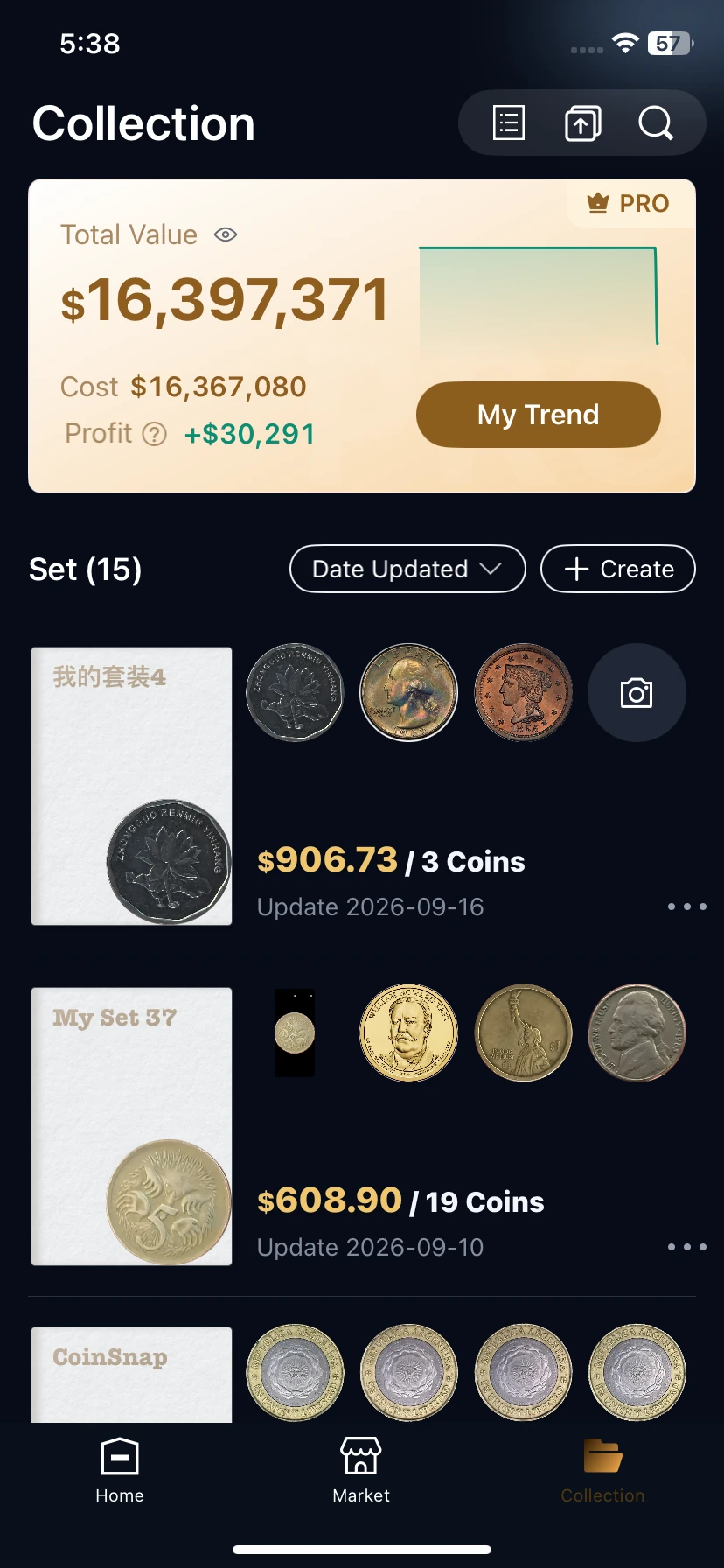
Check value from the Collection tab
Open Collection from the bottom navigation to see Total Value, Cost and Profit. Tap the eye icon next to Total Value to hide the displayed amounts. Use My Trend to access the available trend view. Each set also displays its value, coin count and update date, helping you review individual groups within your collection.
4. Export your collection
Check your plan first. The benefits screen used in this guide marks spreadsheet export as Annual only. Review your current subscription benefits before following these steps; the screenshot describes that offer, not a permanent rule for every plan.
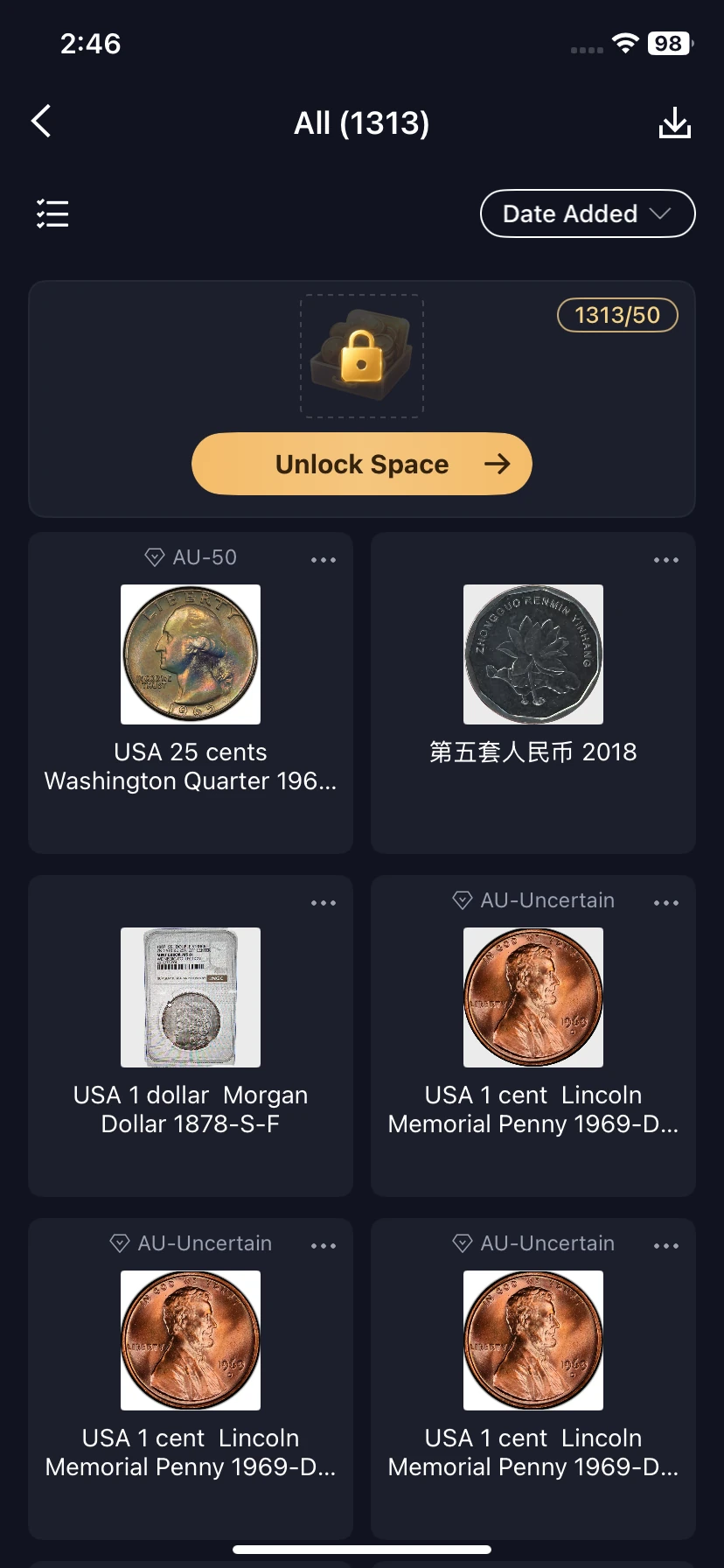
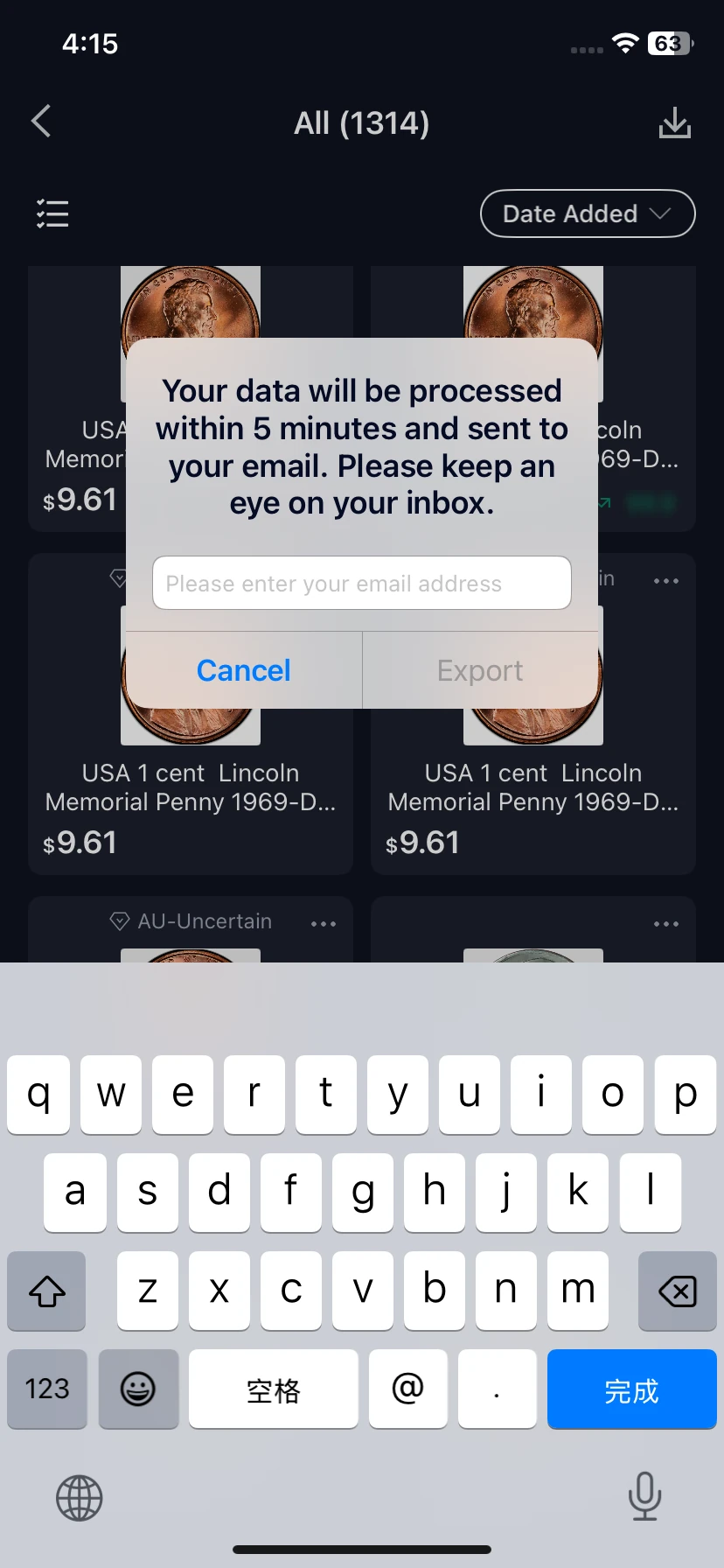
Collection list → download → email export
- Open the collection list shown on the left. Tap the download icon at the top right to open the email dialog shown beside it.
- Enter the email address where you want to receive the export.
- Check the address and tap Export. Use Cancel to leave without requesting an export.
- Check your inbox for the result. The displayed prompt says processing and email delivery will take place within five minutes; if it does not arrive, check spam and contact support.
Follow a purchase or sale from start to finish
Choose the buyer or seller route below. Use your profile to return to listings, orders and balances throughout the transaction.
Find your marketplace dashboard and orders
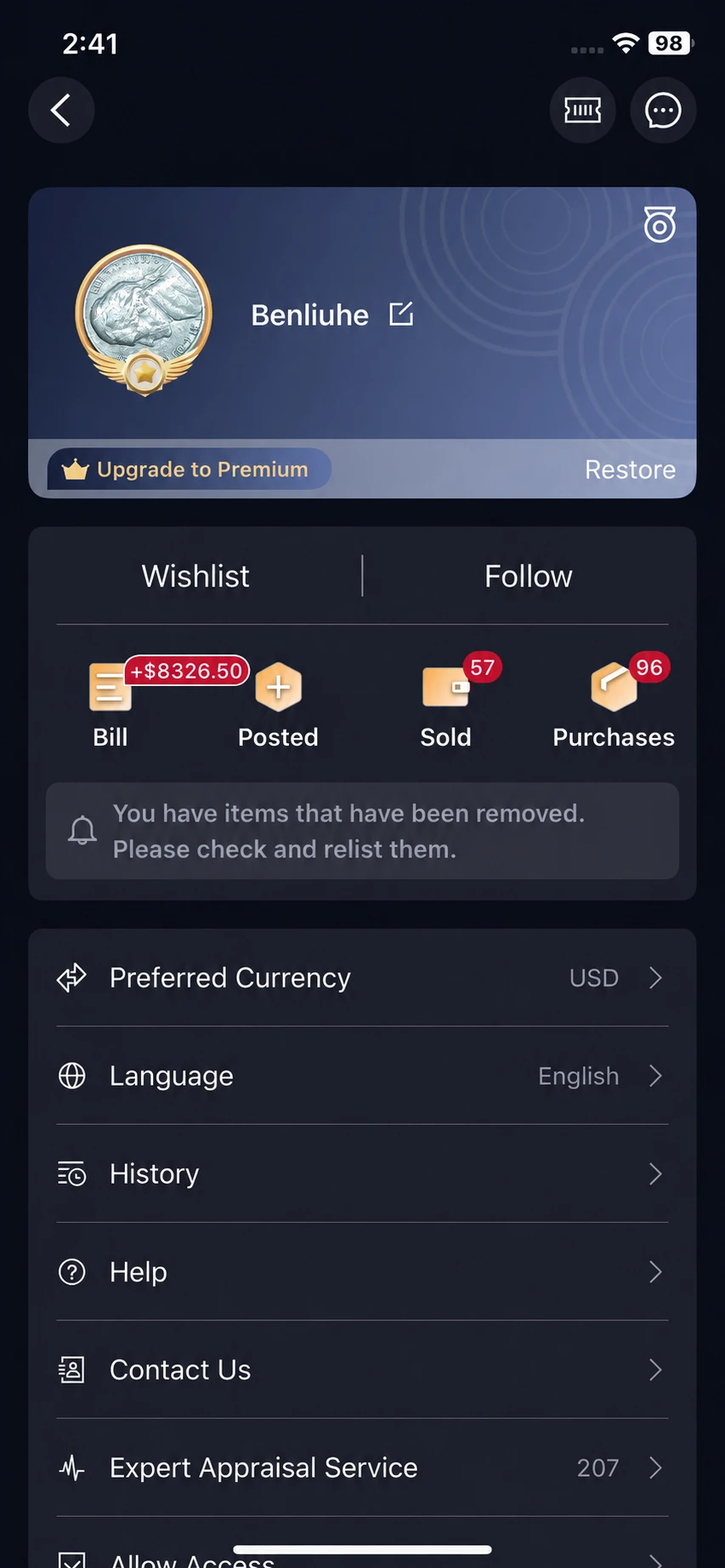
Home → person icon → marketplace activity
- Purchases: return to orders you bought.
- Posted: manage your On Sale and Removed listings.
- Sold: find orders for items you sold and open an order to review its status.
- Bill: review your balance and transaction history.
Buyer route: browse → order → payment → delivery → completion
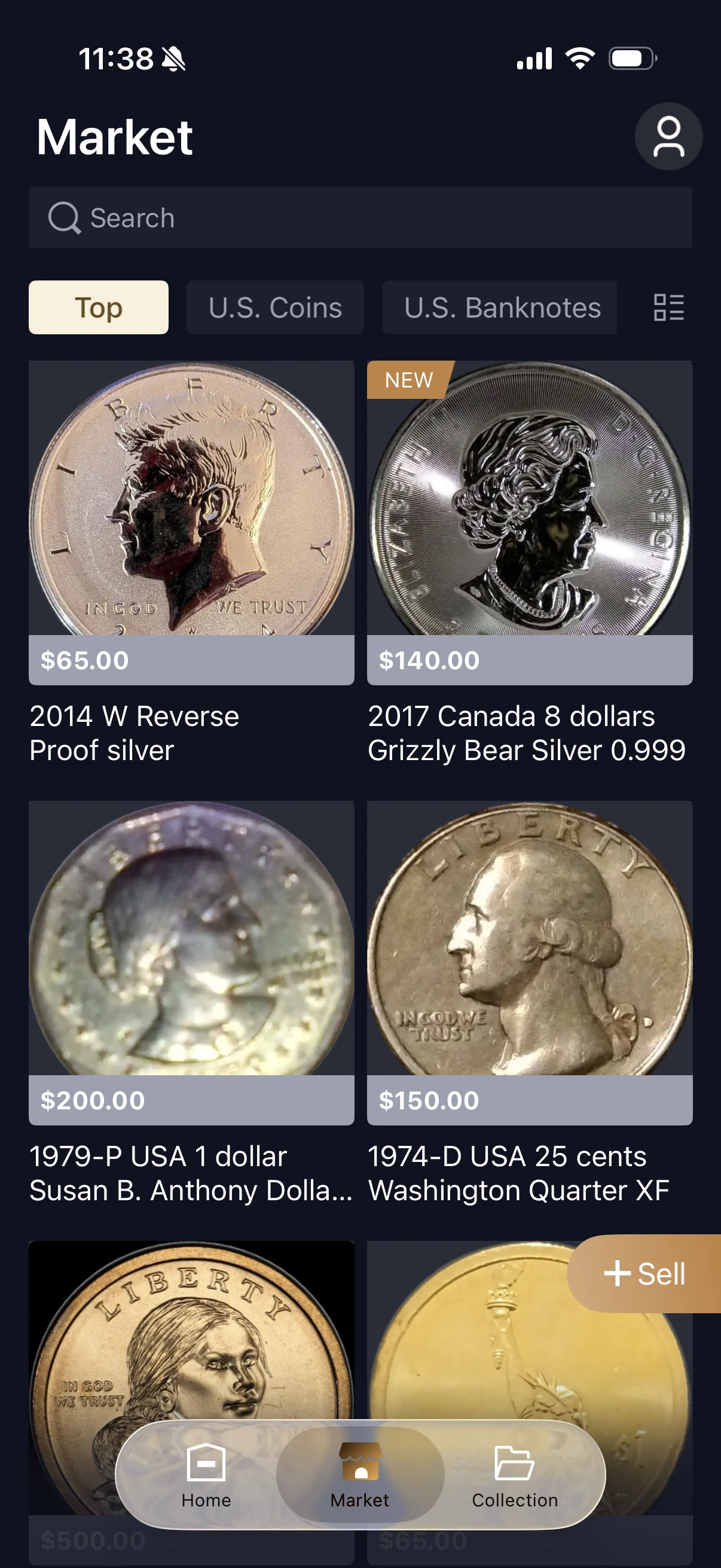
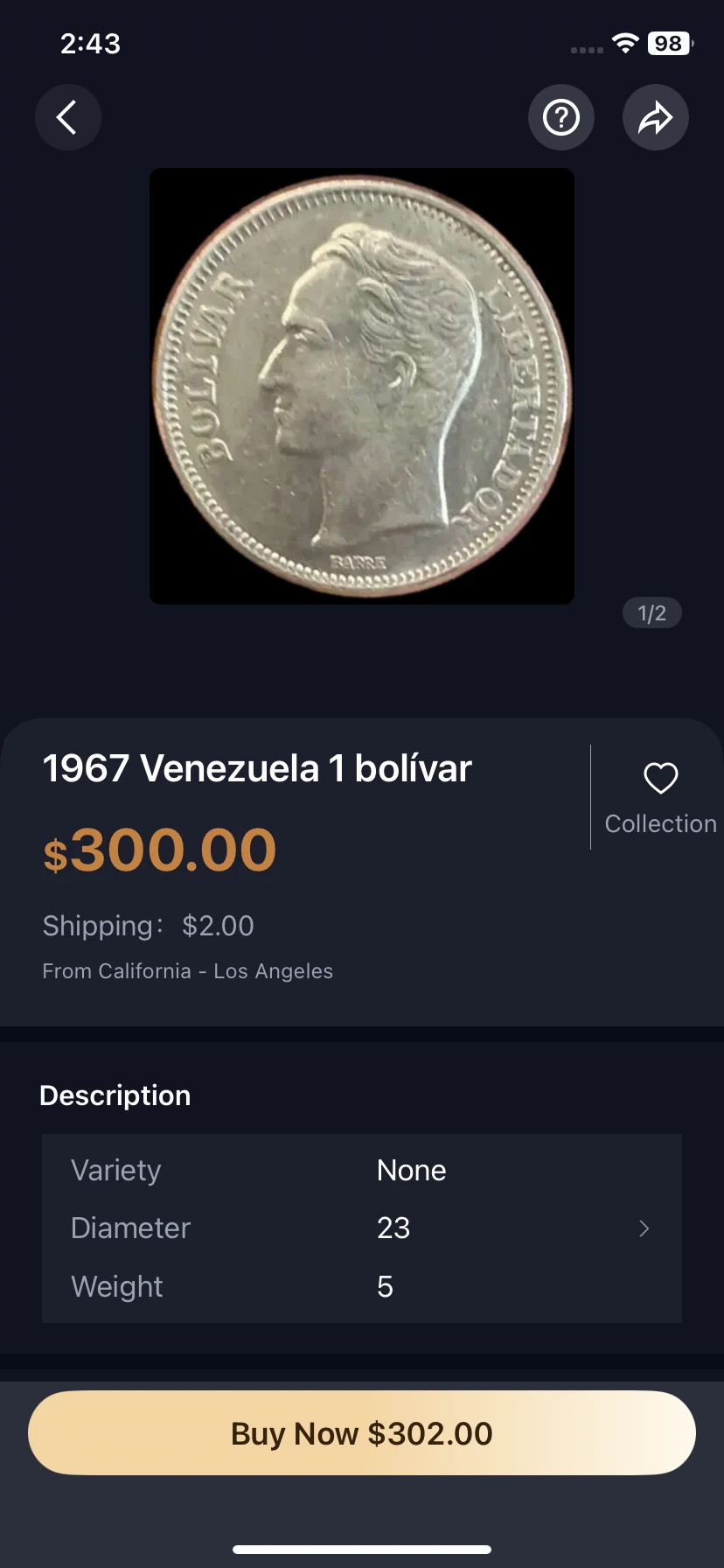
1. Find an item in Market
Open Market from the bottom navigation. Search or choose a coin or banknote category, then open an item.
2. Review the listing and begin checkout
Read the photos, description, seller information, asking price and shipping charge. Tap Buy Now to continue to the order review.
Check the delivery address, full amount and applicable terms before confirming payment.
3. Follow the purchase through to completion
Return through Home → person icon → Purchases to find your order. After checkout, use your order details to follow payment, dispatch, delivery and completion. Follow the actions available for the current order status.
Seller route: publish → manage → sale → ship → completion → balance
1. Start a listing
Open Market → + Sell. You can also start from the selling option on an identification result. Prepare item photos, a description, condition information and your asking price.
Follow the listing form, check your details and asking price, then review the publication confirmation in the app.
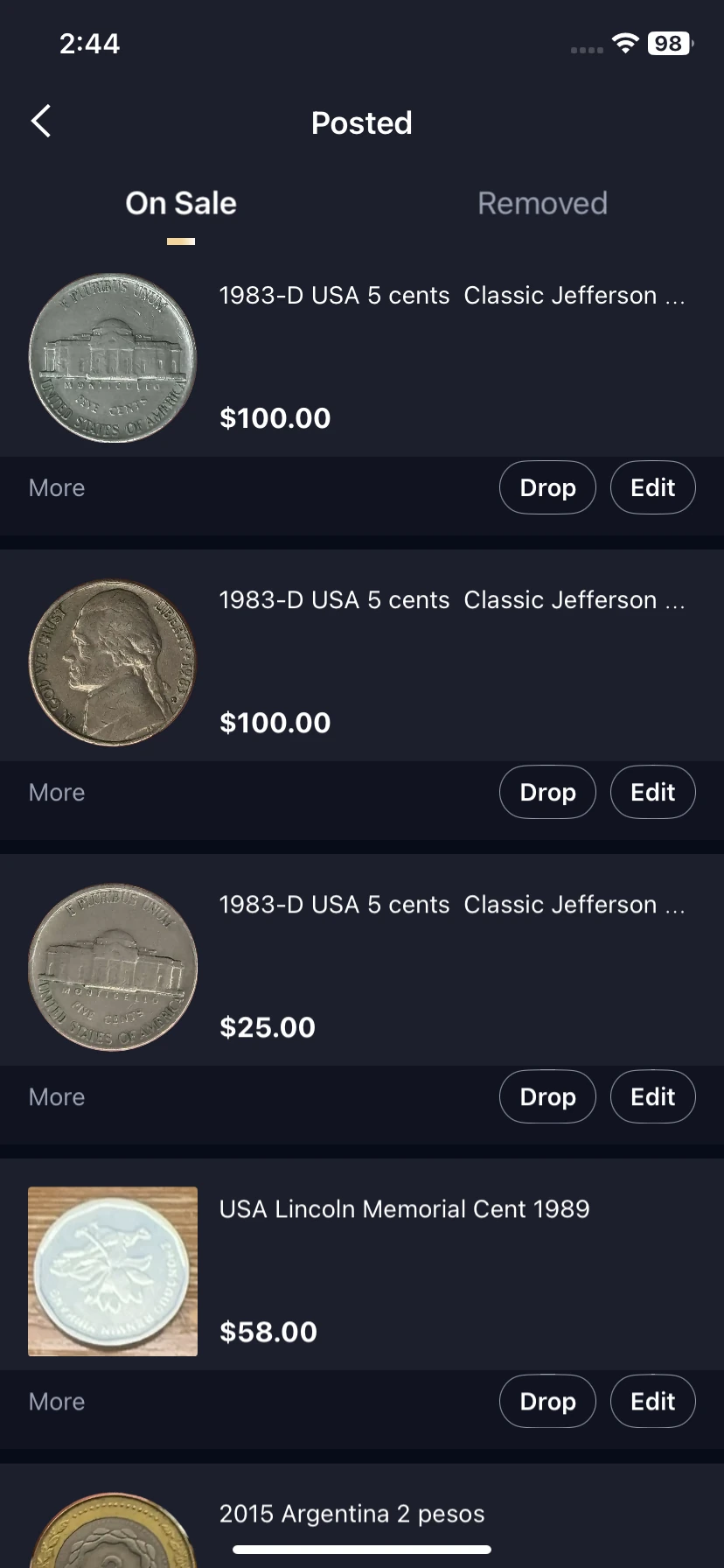
2. Check and manage the published item
Go to Home → person icon → Posted. Use On Sale to find active listings and Removed to review removed items. Edit opens the available changes; Drop is the displayed removal control. Read the confirmation before taking an item off sale.
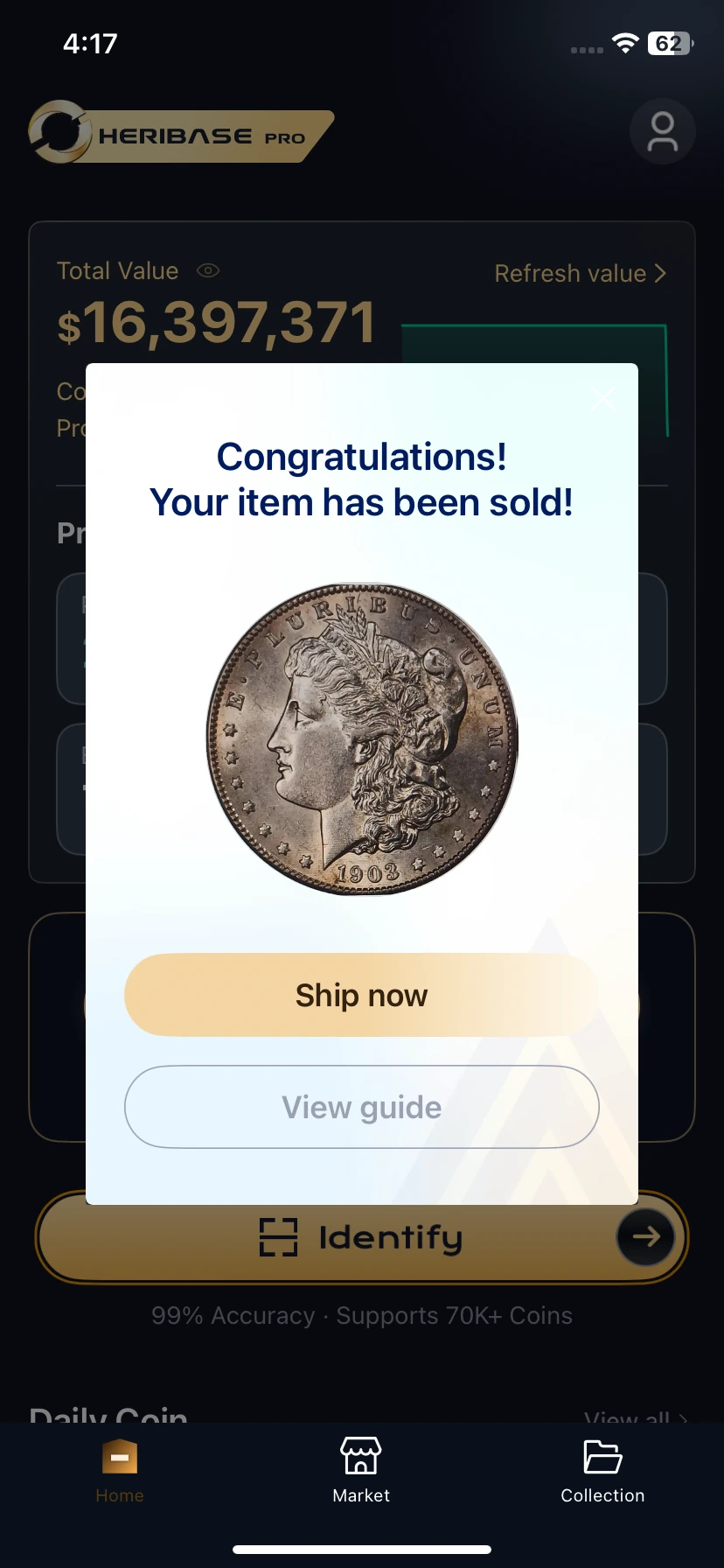
3. Respond when an item sells
The sale reminder offers Ship now and View guide. You can also find the order through Home → person icon → Sold, even after dismissing the reminder.
Open the matching order and check that the buyer has paid before arranging dispatch.
4. Verify the paid order and prepare dispatch
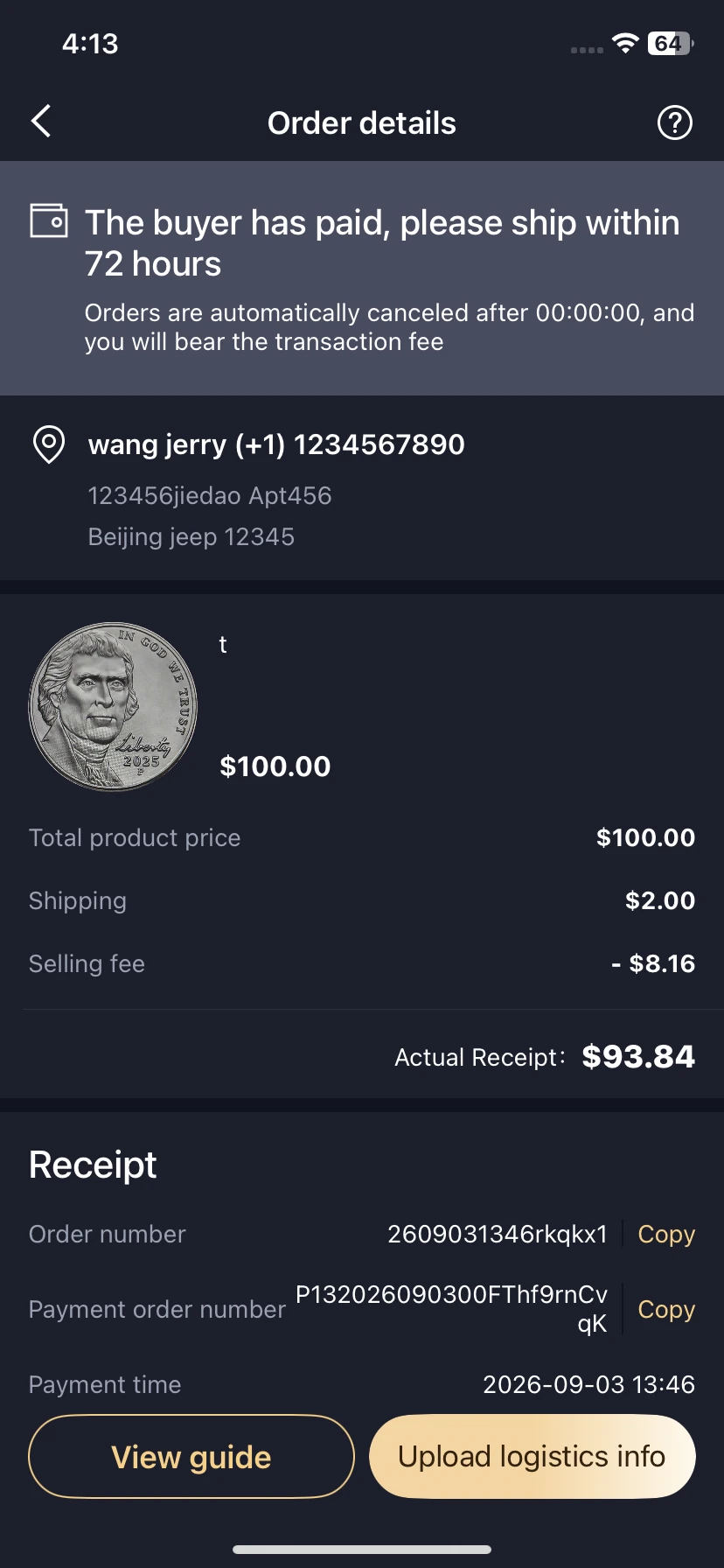
Check the item, recipient, payment status and dispatch deadline. This example asks the seller to ship within 72 hours; follow the live deadline on your order. Keep the shipping label or dispatch receipt.
Tap Upload logistics info after arranging shipping. The reminder and order images show different items and illustrate steps, rather than a single transaction.
5. Submit shipping information
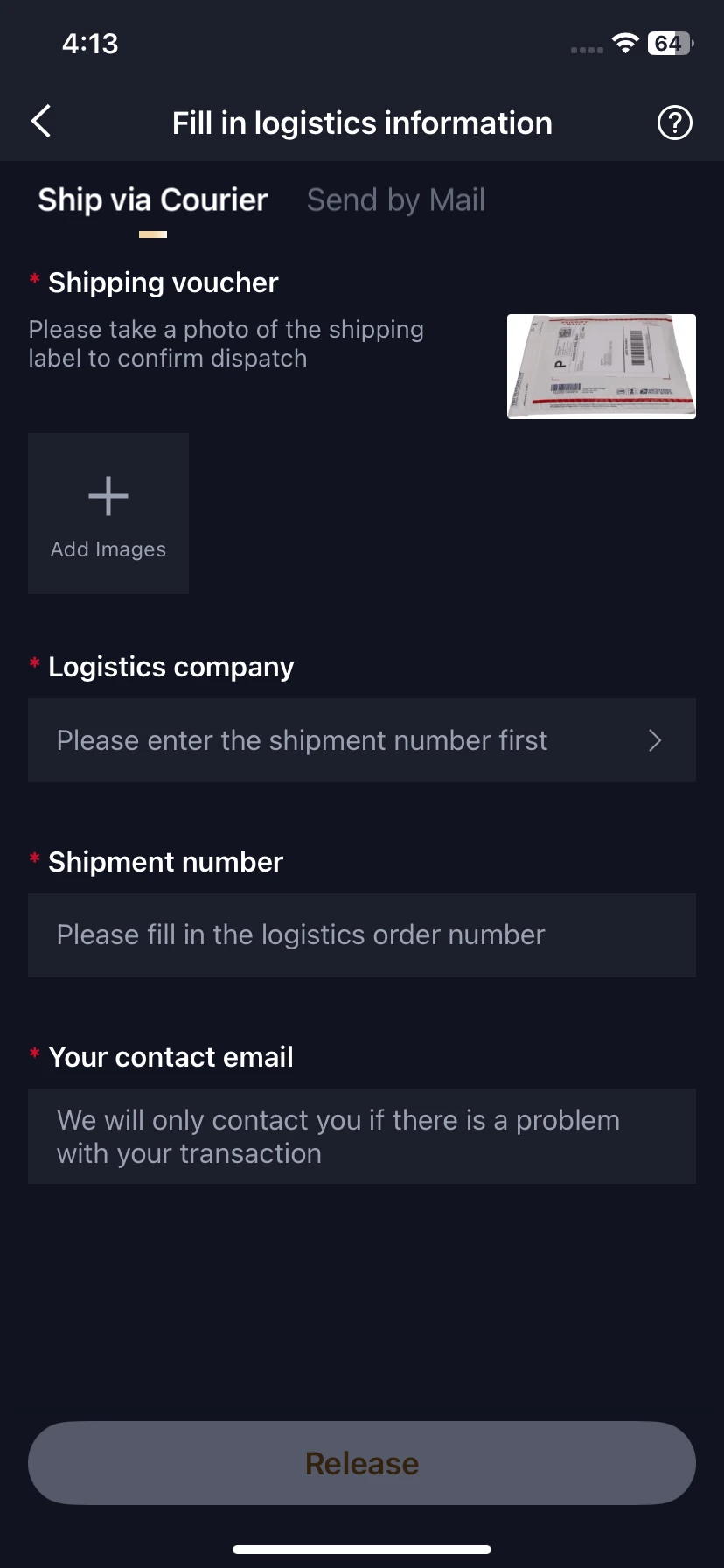
- Choose the applicable shipping method. The supplied form shows Ship via Courier; Send by Mail is another tab.
- Add the shipping-voucher image.
- Enter the shipment number, then check the logistics company as prompted.
- Enter your contact email, review the details and tap Release when available.
- Return to the order and verify that shipping information was accepted.
6. Track the sold order until the transaction completes
Open Home → person icon → Sold to track shipping, receipt and completion. Payment received from a buyer may still be awaiting settlement; check Bill for available funds.
7. Review the balance and settlement
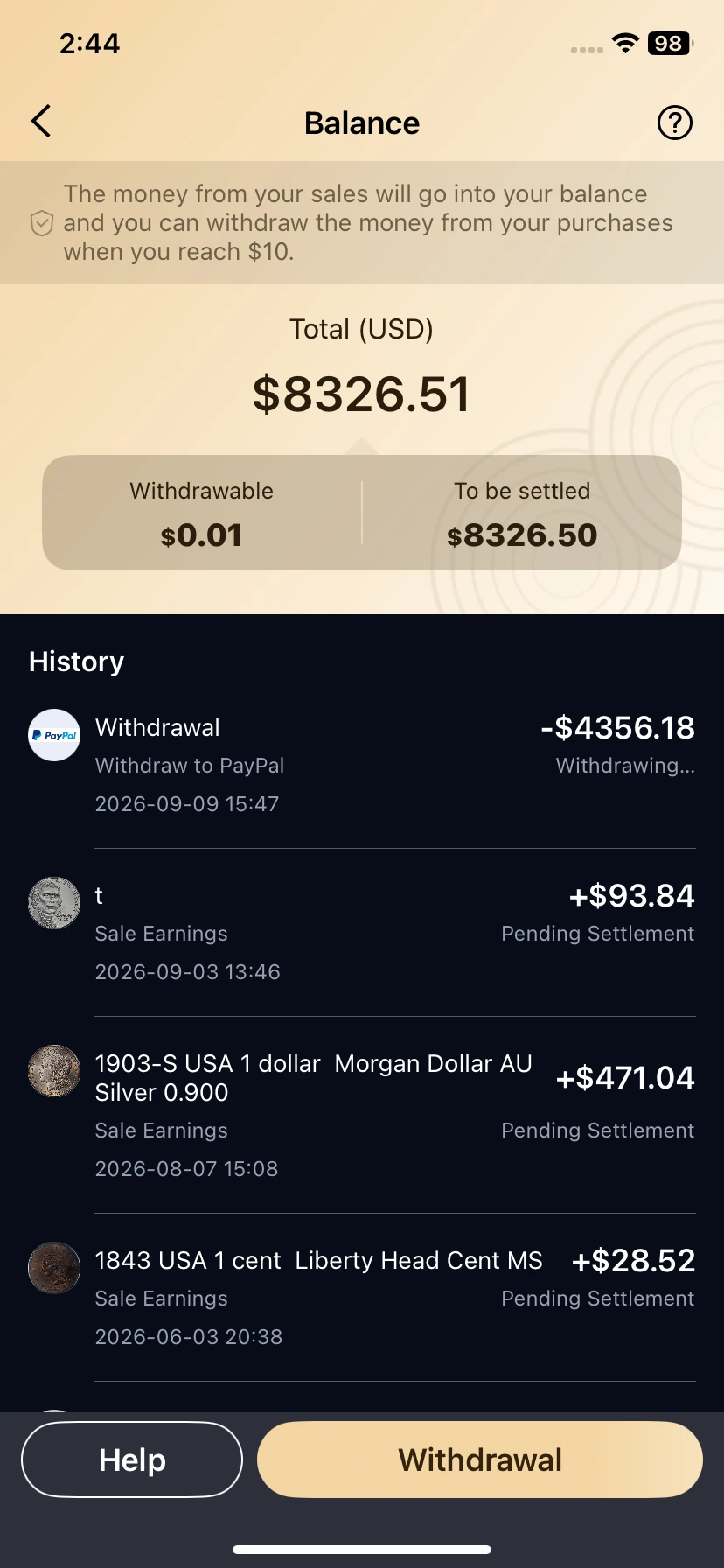
Open Home → person icon → Bill to reach Balance. Review Withdrawable, To be settled and the transaction history to distinguish pending earnings from available funds.
Use the actual order and balance status to check settlement. See subscriptions and fees for the supplied fee and withdrawal information.
Ask a specialist about an unresolved detail

A useful appraisal request starts with a specific question. For example: “Is this mint mark consistent with the identified issue?” or “Does this detail indicate a recognized variety?”
- Look for Expert on Home or Expert Appraisal Service in your profile.
- Review the specialist’s profile and relevant expertise, then select Authenticate Now to proceed.
- Prepare both sides, the full rim and close-ups of the feature in question. Include the AI result as context.
- Read the service scope and delivery terms before submitting. See the expert appraisal fees below.
- Use the service’s order or result area to follow the response; retain the submitted photos and report together.
Expert specialties and appraisal fees
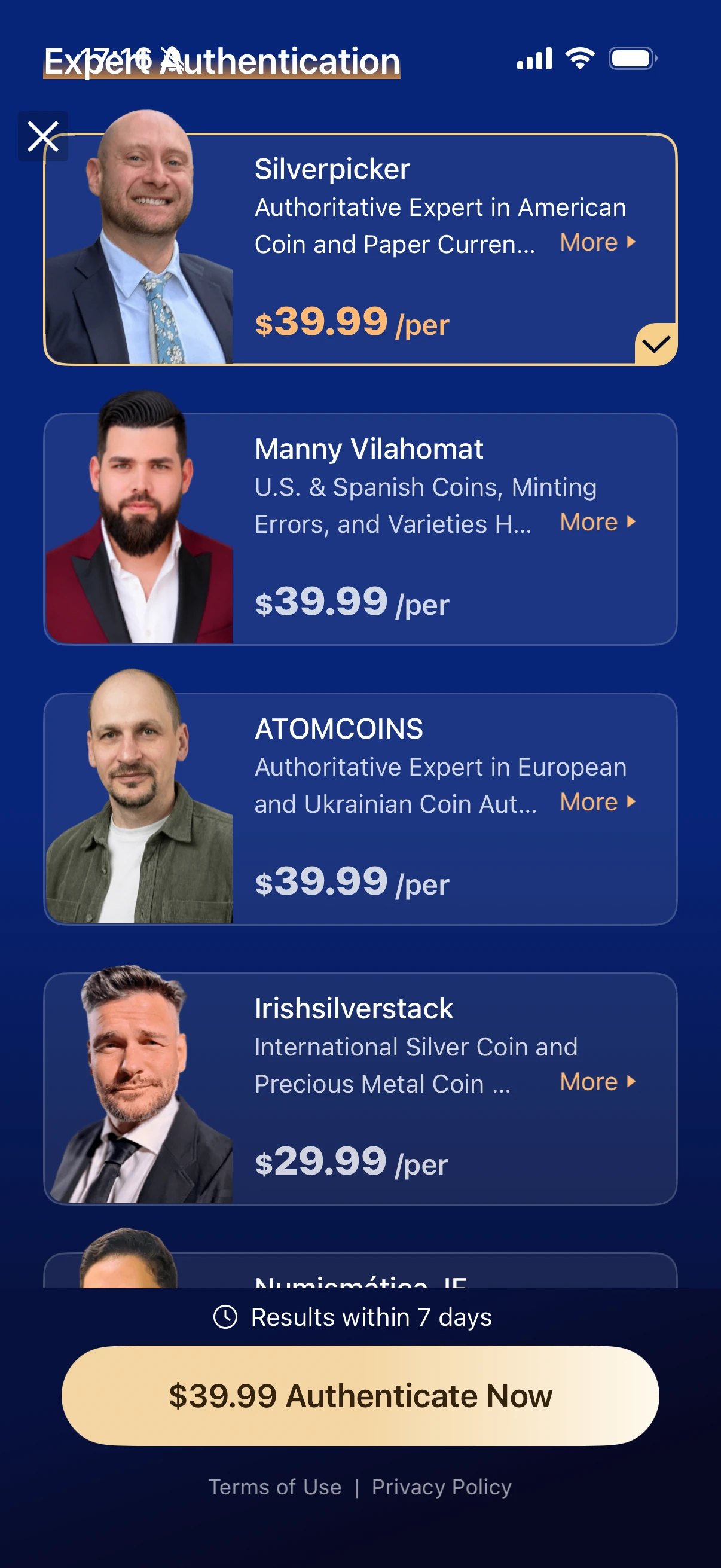
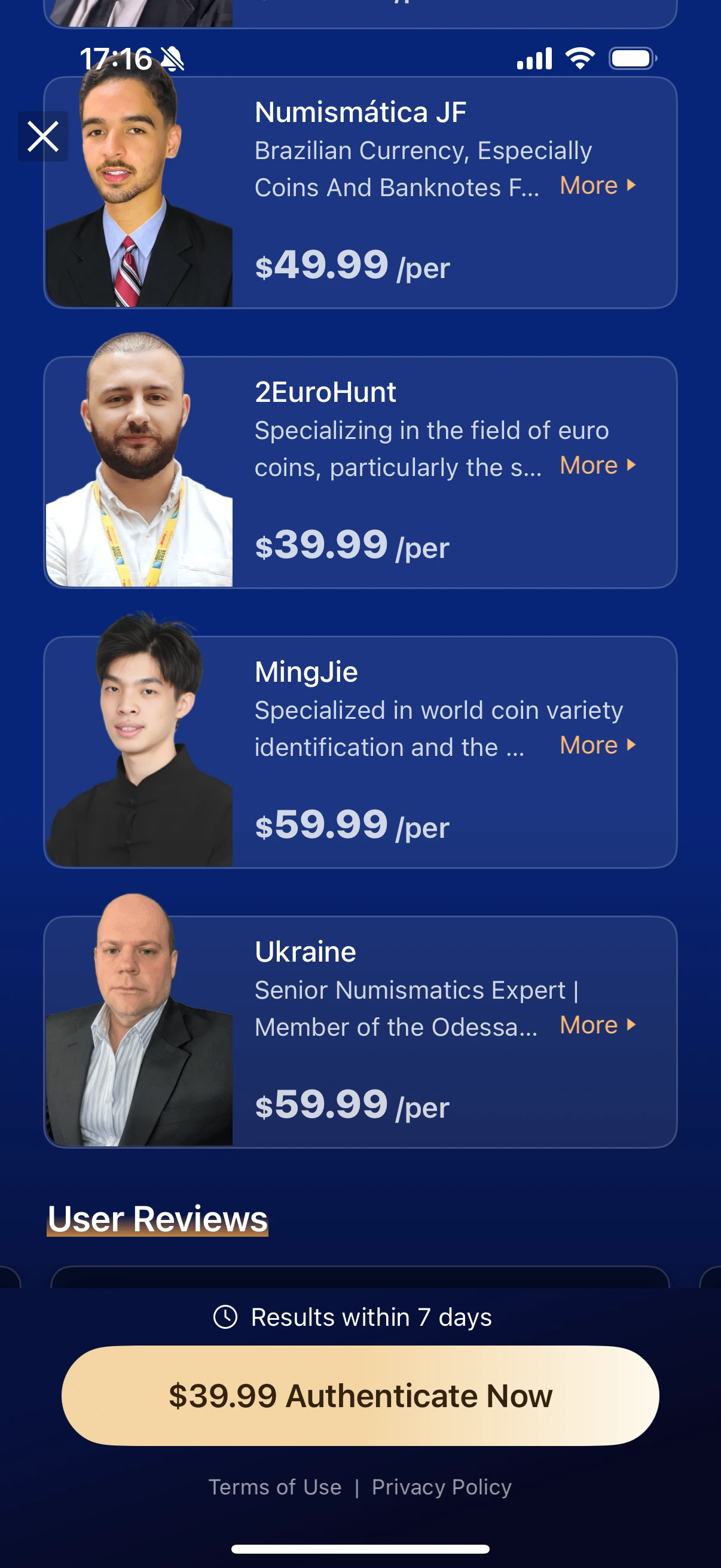
HeriBase offers human experts with specialties covering multiple national coin series and world coins. Users can choose by specialty, assessment needs and budget.
Choose by specialty, need, and budget. Fees vary by expert: the profiles show individual appraisal prices of $29.99, $39.99, $49.99, and $59.99. Review each expert’s profile and current service terms before selecting an option. Human appraisal is charged separately from HeriBase’s identification and collection subscription.
For an authenticity opinion, confirm that the selected expert explicitly includes it in the service. Condition grading and reference valuation do not by themselves establish whether a coin is genuine.
These USD prices are examples shown in the expert profiles, not a fixed fee for every service. Confirm the current fee, service scope and expected turnaround before paying. See the three-app comparison for the original expert-service overview.
Submit a coin or banknote for review
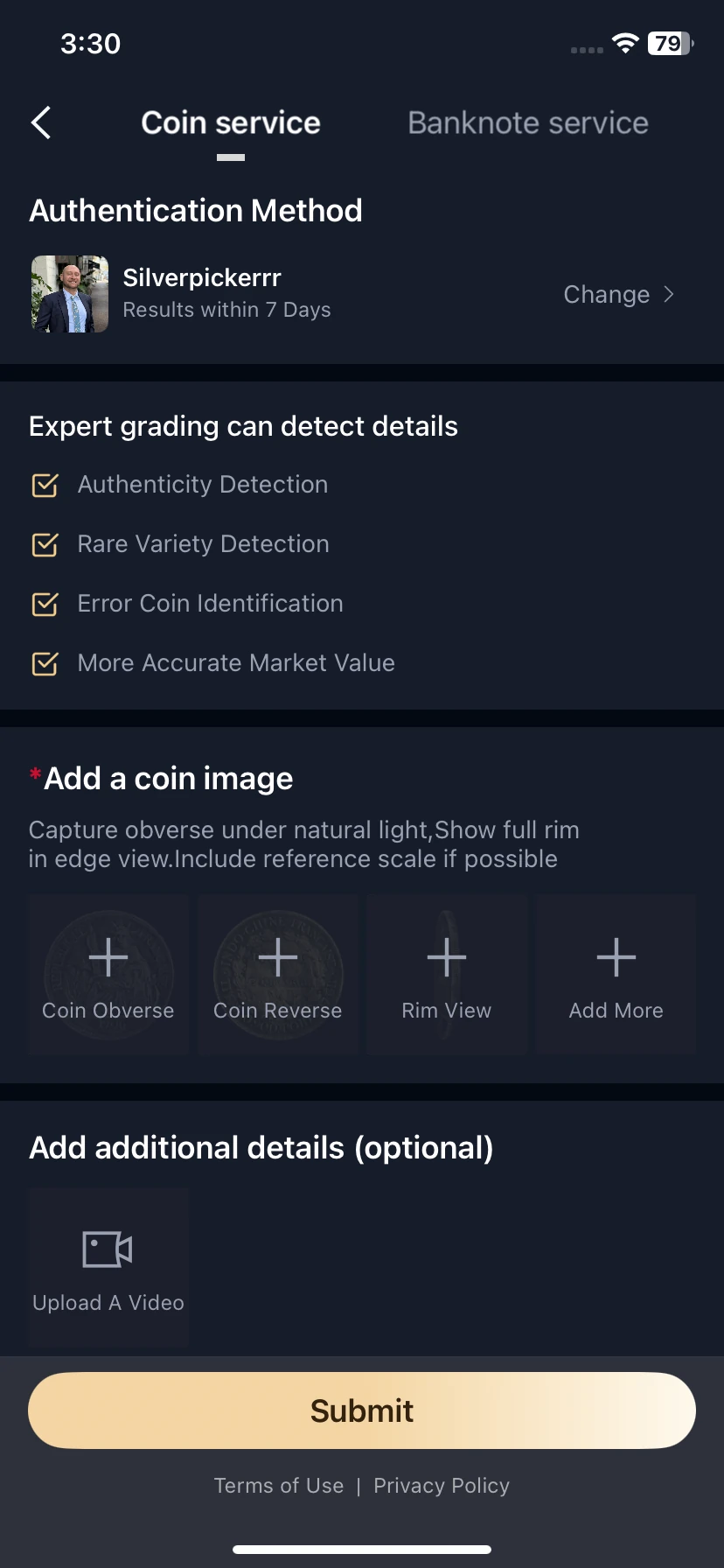
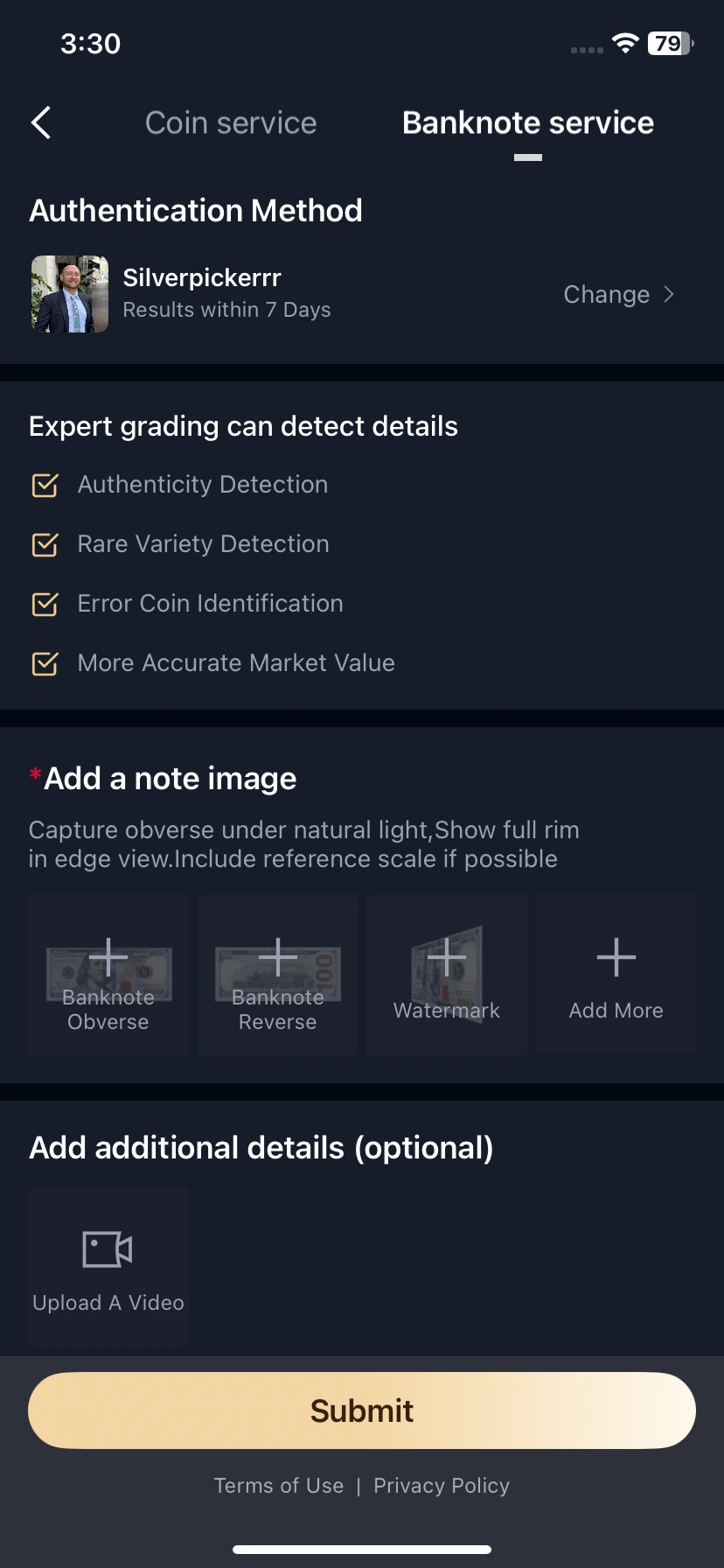
- Select the item type. Choose Coin service or Banknote service at the top.
- Check the specialist. Review Authentication Method; use Change if you need a different available service. The selected example displays Results within 7 Days. Confirm the timing attached to your own selection.
- Add the requested images. For coins, use Coin Obverse, Coin Reverse and Rim view. For banknotes, use Banknote Obverse, Banknote Reverse and Watermark. Use Add More for relevant detail images.
- Add optional evidence. Upload A Video is available under additional details. Use clear images that show the item and the specific feature you want reviewed.
- Review and submit. Check the selected service, attached files and applicable terms, then tap Submit. Follow any further confirmation or payment prompts shown in the app.
After submitting, keep the order reference and check its status for the expert’s response.
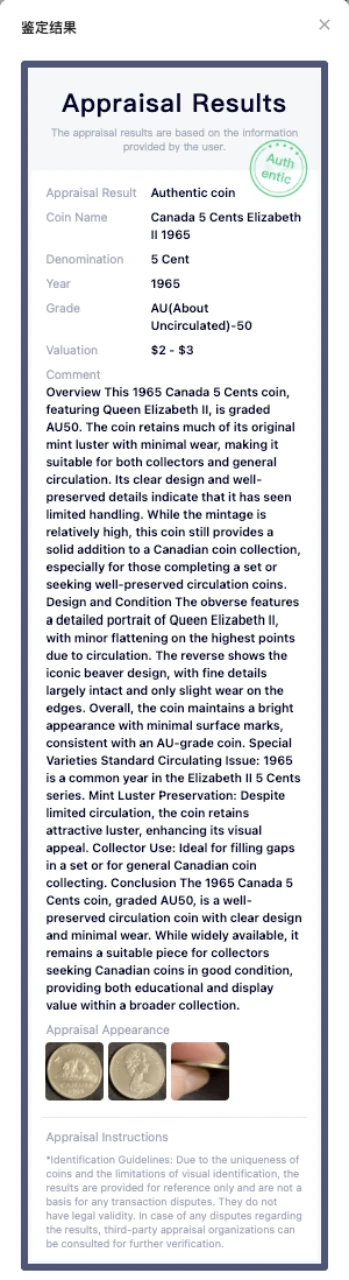
Read the reasoning, not just the headline
The sample report contains a coin identity, an authenticity opinion, a condition assessment, a valuation and explanatory comments. Check that it refers to the coin you submitted and addresses your actual question.
The report itself states that the assessment is based on information provided by the user and discusses limits of visual identification. Photo-based review does not replace physical examination when the unresolved feature requires testing or direct inspection.
Find preferences and useful shortcuts
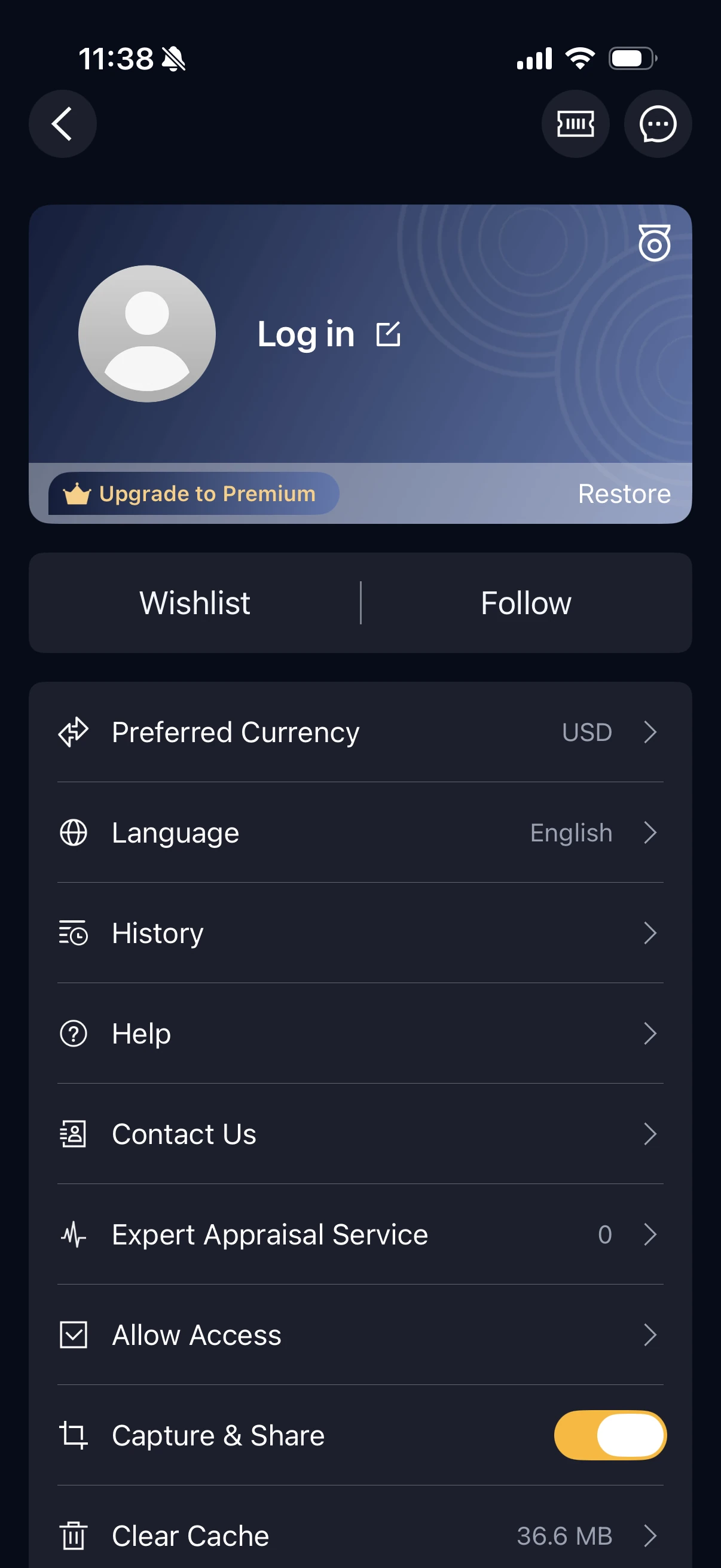
Open the person icon to find these settings and shortcuts. For registration, sign-in, sign-out and deletion, see Your account.
- Wishlist / Follow: entries for saved interests and followed accounts.
- Preferred Currency / Language: choose your currency and display language. Supports 12 languages
- History: look for previous activity or identification records.
- Help / Contact Us: find guidance or describe a problem to support.
- Expert Appraisal Service: access the appraisal area.
- Allow Access: review access options, alongside your device’s permission settings.
- Capture & Share / Clear Cache: additional controls shown in this version.
Upgrade to Premium and Restore are explained in the next chapter. Before changing devices or removing the app, confirm your account and how your records are retained.
Check messages and order notifications
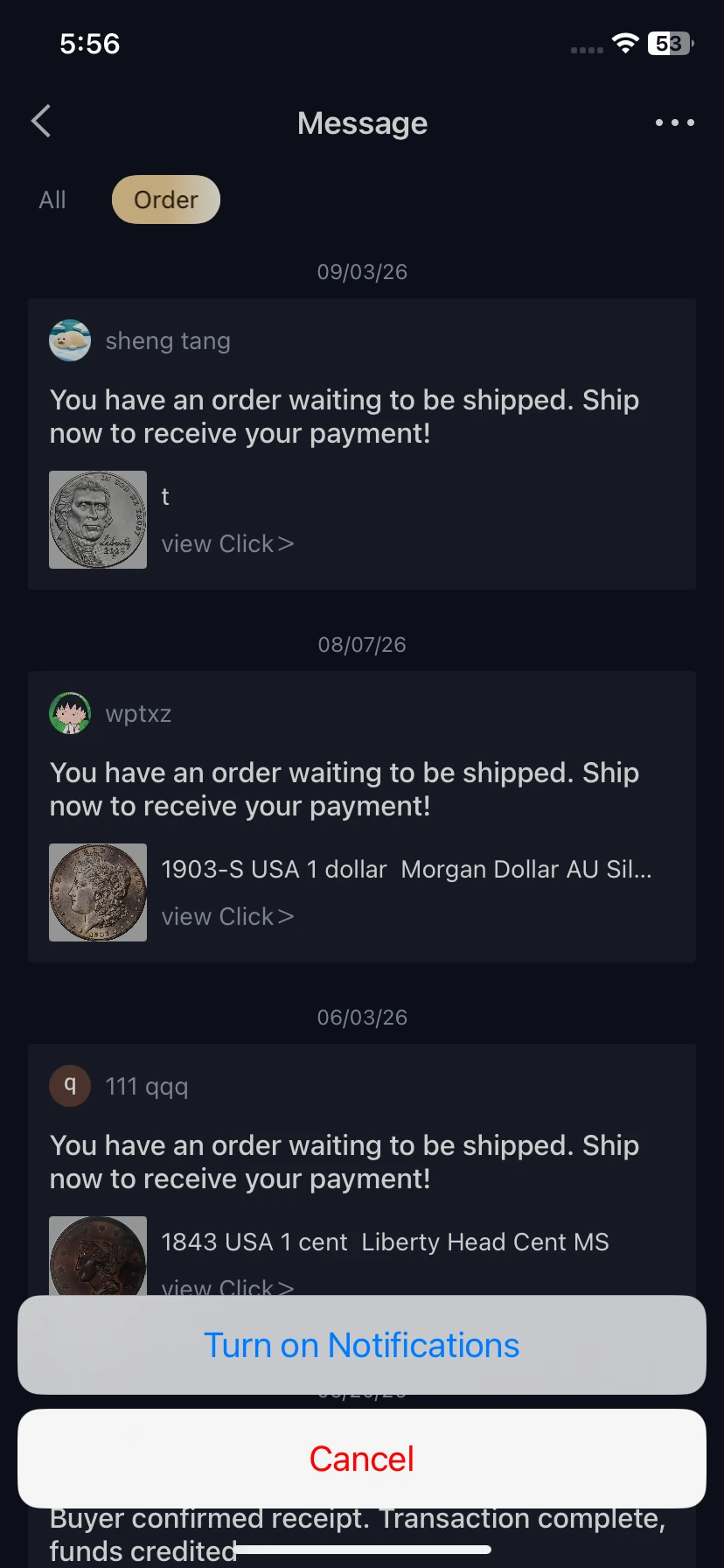
- Open the message icon at the top right of your profile to reach Message.
- Choose All or Order to browse the relevant messages. The example shows dated order reminders with item images and names.
- Use the message’s view link to check the related order. Shipping reminders prompt sellers to arrange dispatch; see the buying and selling workflow for the next steps.
- Open the top-right three-dot menu and choose Turn on Notifications, then follow any device prompts. Choose Cancel to close the menu.
Review the related order for its current shipping, completion and payment status.
Subscriptions, paid services and purchase management
Free daily identification
The first three scans each day are free, and you can watch ads for additional scans without subscribing. A subscription includes unlimited identification. This free access is separate from the subscription trial below.
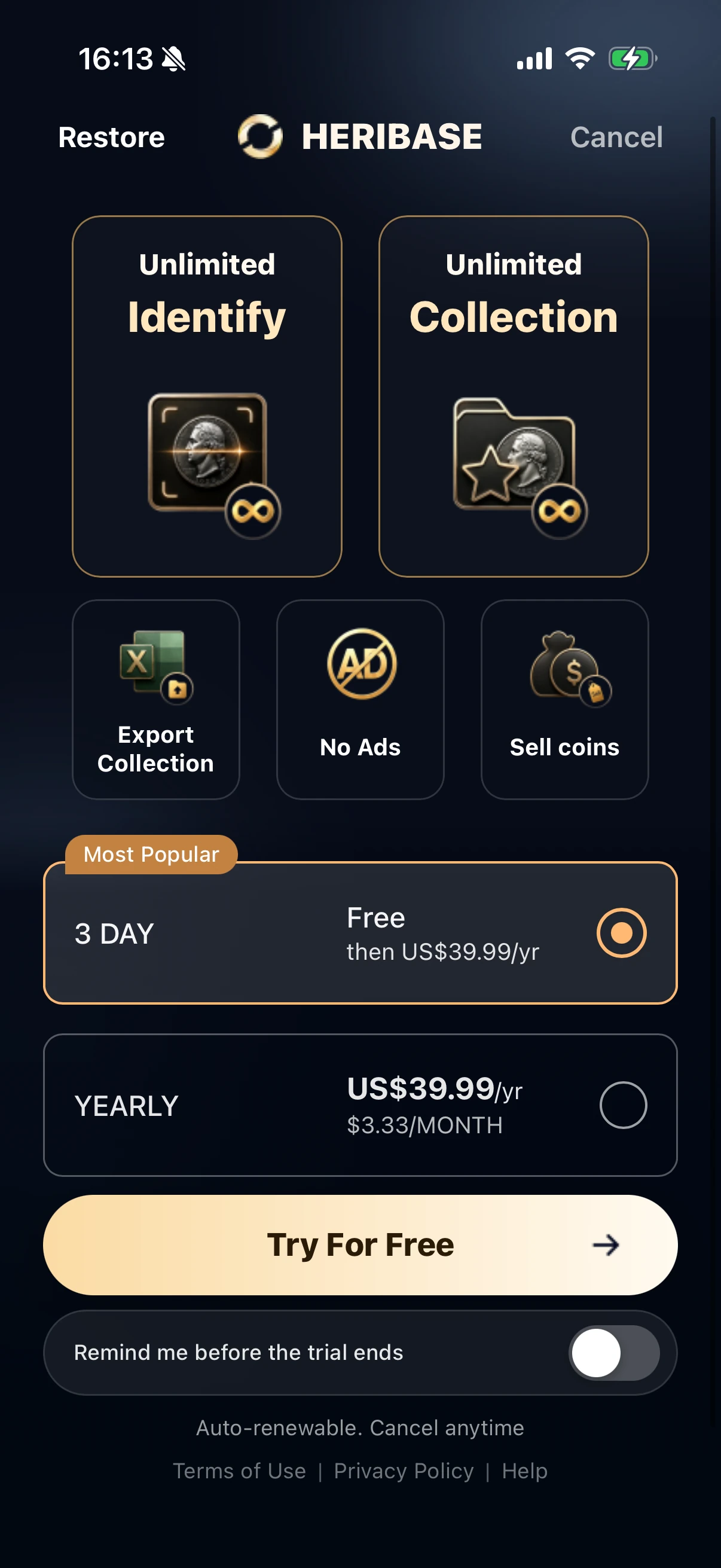
Try the subscription, then pay annually
- Free trial: the displayed offer provides 3 days free, then US$39.99 per year. Tap Try For Free and review the store confirmation before starting.
- Annual plan: US$39.99/year. The displayed $3.33/month is an equivalent amount, not monthly billing.
- Trial reminder: the screen includes a “Remind me before the trial ends” switch.
- Renewal: the offer states that it auto-renews and can be canceled. Check the trial end date and renewal terms before confirming.
The offer advertises unlimited identification and collection, export, no ads and selling coins. Check the plan’s detailed benefits below.
Prices and trial eligibility may vary by account, platform and region. The offer and purchase confirmation in your app take precedence.
| Type of access | What to check before paying |
|---|---|
| Free use | 3 free scans per day; watch ads for additional scans without subscribing. |
| Premium subscription | Unlimited identification. Confirm other included benefits and renewal terms for the selected offer. |
| Expert appraisal | Separately charged; see expert profiles and fees. |
| Market purchase or selling costs | Review any item payment, delivery and platform charges separately from the app subscription. |
Marketplace balances and withdrawals
Browsing marketplace listings is free. A percentage-based service fee applies to completed transactions; check your order breakdown for the applicable fee.
The example order shows US$100 plus US$2 shipping, less a US$8.16 selling fee, for an Actual Receipt of US$93.84. Review your own order breakdown; this example does not define a universal fee rate.
Check Withdrawable for available funds and To be settled for pending amounts. A Withdrawing status means the withdrawal is still in progress.
The example displays a US$10 withdrawal threshold. Open Help to confirm the current minimum, settlement time and charges before choosing Withdrawal.
Subscribe and restore access
- Open Upgrade to Premium from the profile, or the purchase screen presented by the feature.
- Select an offer, tap Try For Free or the purchase button shown, and review the store’s trial and billing confirmation before approving.
- Return to the app and check whether the expected benefit is available.
- If you already paid, check the store account used for the purchase and try Restore. If access remains missing, contact support with the receipt or order reference; do not send payment passwords.
Confirm your subscription is active
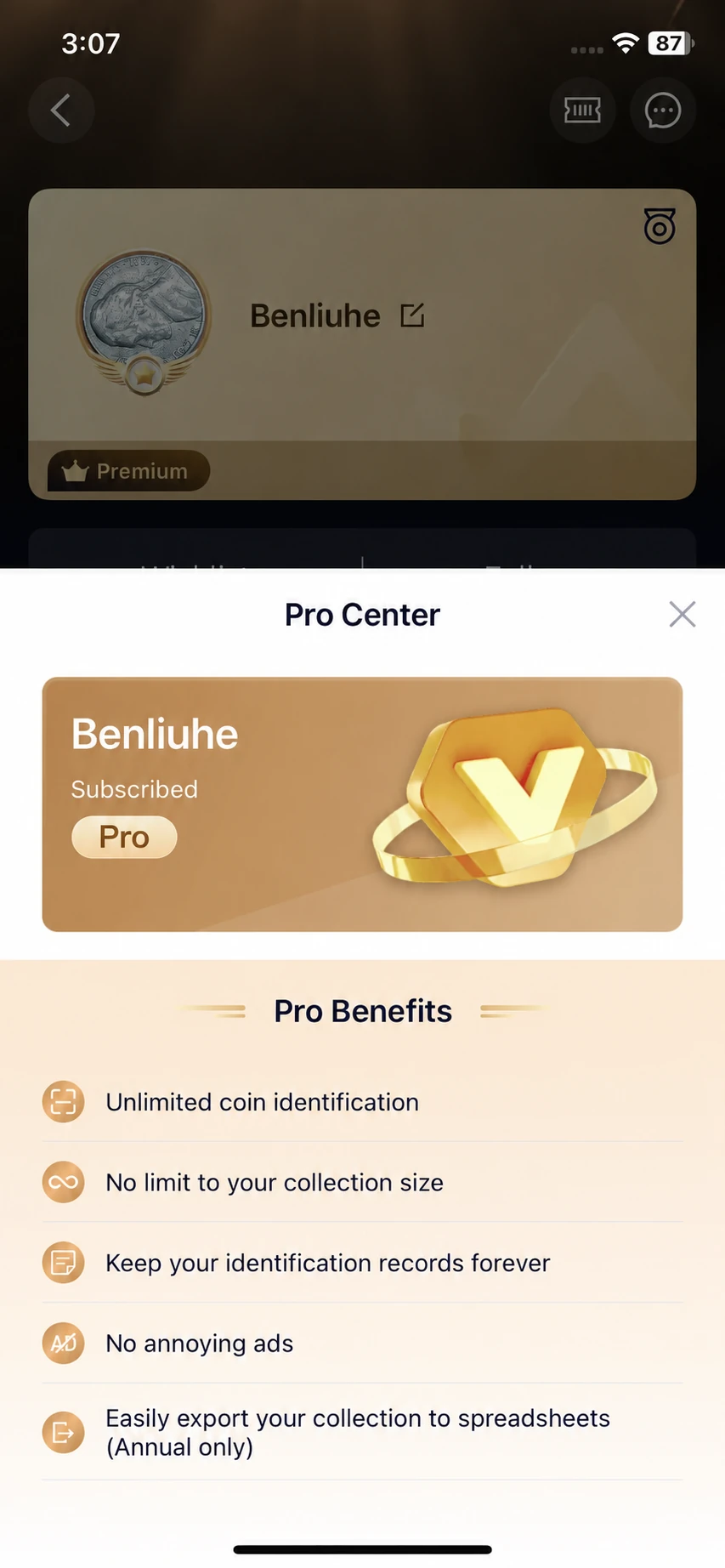
After purchasing, open your profile and check for Subscribed in Pro Center. The illustrated screens use both Premium and Pro labels; check your actual plan benefits.
Review the included identification, collection and history access. Spreadsheet export is marked Annual only in this benefits panel.
Use your billing provider’s subscription page to check the renewal date and next charge.
Manage renewal and cancellation
For an Apple-billed purchase: open iPhone Settings, tap your name, then Subscriptions. Select the app and use Cancel Subscription if available. Check the expiration or renewal information shown there.
For a Google Play-billed purchase: open your subscriptions in Google Play using the purchasing account, select the app and follow the cancellation prompts. Uninstalling the app does not cancel the subscription. Google states that access normally continues for the period already paid.
The Cancel control on the app’s offer page should not be treated as confirmation that an existing subscription has been canceled. Manage that subscription with the provider that bills you.
Refunds and billing problems
Use Apple’s refund-request service for Apple-billed purchases or Google Play’s refund help for Play-billed purchases. Eligibility depends on the provider and purchase; a request is not a refund guarantee. For an expert service or marketplace order, check that order’s support and refund terms separately.
Common questions about HeriBase
Can I use HeriBase for free?
Yes. The first three scans each day are free, and you can watch ads for additional scans without subscribing. A subscription includes unlimited identification. A subscription trial is a separate offer; review its eligibility, end date and renewal terms before starting.
Why is the identification wrong?
Retake clear photos of both sides with the full edges visible, even lighting and no glare. Check the date and mint mark against the result. If it still looks wrong, send feedback with the photos, result and a short description to contactus@heritcoin.com.
Why is the market price different from the app’s estimate?
The app gives a reference estimate; a listing shows what a seller is asking, and a completed sale records what a buyer paid. An asking price does not establish a sale value. Differences can reflect the coin’s year, mint mark, variety, condition, valuation date and whether fees or shipping are included. Match those details before comparing amounts.
If you disagree with the estimate, open Expert on Home or Expert Appraisal Service in your profile. Prepare the result screenshot, clear photos of both sides and the comparison record you found, then ask a specialist to review the difference. Check the service scope and separate fee before submitting. Our coin appraisal guide explains when an app estimate, expert review or physical examination is appropriate.
Where should I look for an earlier identification?
Open the person icon and check History. Saved collection records belong in Collection. If a record is missing, confirm which account you are using before reinstalling.
Does Premium include expert appraisal?
No. Premium or Pro membership and expert appraisal are separate services; an expert assessment is charged separately.
Before paying, check the expert’s fee and service scope and your membership benefits.
What should I send to support?
Describe the feature, the steps you took and what happened. Include your device, app version and a screenshot with personal information hidden. Use Contact Us in your profile.
Put your first item into a useful collection record
Begin with one coin or banknote: capture clear front and back photos, check the result against the item, and correct any details before saving. Explore the 3D view for supported coins, or return to History when you need an earlier identification.
Once saved, organize records into sets, choose covers, review values and export a copy when needed.
For your next step, browse the Market or prepare a listing, follow order updates in Messages, or ask a specialist about an item. Keep reference estimates distinct from asking prices and completed sales.
Choose paid access only for the features you need. Review free access and subscription terms or the separate expert services before ordering. For help with a result or feature, contact our team at contactus@heritcoin.com.
Sources and screenshot notes
References· 10 sources
Platform and version scope: this guide illustrates the iPhone interface using supplied screenshots and existing editorial examples. App build numbers were not recorded, so it is not a version-specific walkthrough or an Android interface test. Screenshot prices and account states are examples, not live offers. Expert profiles and transaction completion have not been independently verified. Image provenance and edited-illustration details are recorded in the screenshot credits.
- HeriBase on the App Store — identification, value references, collections and price-trend features; reviewed September 16, 2026.
- HeriBase official website — product name and feature overview.
- Official FAQ — identification troubleshooting and support.
- Apple: cancel a subscription; request a refund.
- Google Play: manage subscriptions; refund help.